


Keynote Tutorial: How to Create Basic Effects & Transitions

Learn how to apply effects and transitions to a Keynote presentation with Katya Kovalenko
Across all industries, presentations are a necessary but potentially problematic format for sharing information. Offering an important opportunity to inform and influence an audience, if a presentation is prepared poorly, it can easily become boring and result in losing audience engagement.
Thankfully, with just a few simple steps, it’s easy to create professional-looking presentations that help you share your message and get people interested. One popular tactic is using effects to create movement and add interest to slides, but not all effects (think, dizzying spinning transitions) are created equal.
In this tutorial, presentation and data designer Katya Kovalenko (@katyakovalenko) demonstrates how to create basic effects and transitions within Keynote presentations.

How to add effects between slides
1. To add an effect to a single slide, select the slide then go to the upper right-hand corner of the window and select Animate and then Add an Effect.

2. Kovalenko recommends only picking one or two effects to use in your presentation, and to use subtle ones that will enhance but not distract. Her favorite is Dissolve, which adds a very smooth transition between slides.

3. In the menu on the right side of the window, you can adjust the effect settings, controlling the duration of the effect and whether you want it to begin automatically or when you click to the next slide.

4. To apply a transition effect to your entire presentation, select all the slides and then, using Add an Effect, select the effect you would like to apply to all of them.

5. To preview your presentation and check your effects, click Play in the upper left corner.
How to add an effect or transition to one element of a slide
1. To make an element, like an illustration, move across the slide, select it and click Built In from the effects menu on the right.
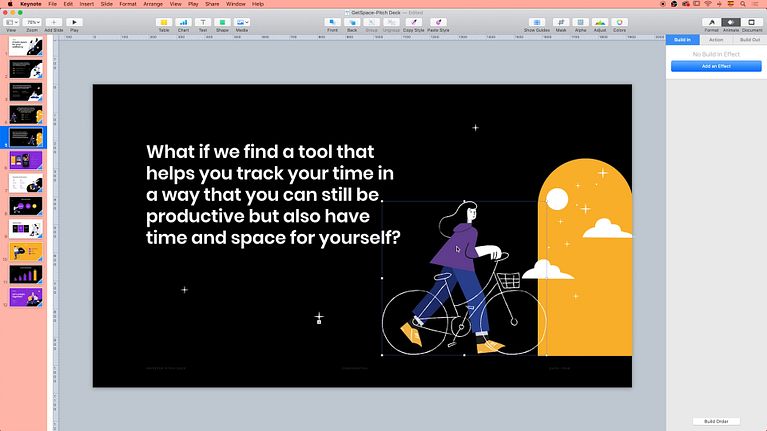
2. To animate the element entering the slide, click Add Effect and select Move In. You can adjust the settings using the effect menu.

3. If you have different elements in your slide that you would like to have appear at different times, select the element and go to Built In and select Appear or Dissolve from the effect options. In the settings you can adjust the duration, and if you apply the effect to multiple elements you can also control the order in which they will appear.

4. Remember to use Play to preview your effects and make any necessary changes before you share your presentation.
If you enjoyed this tutorial, you can learn more about how to create beautiful and effective presentations from Katya Kovalenko through her online course, Principles of Presentation Design.
You May Also Be Interested In:
- Logo Design: From Concept to Presentation, a course by Sagi Haviv
- Brand Strategy for Online Platforms, a course by James Eccleston
- Editorial Illustration for Magazines, a course by Emma Hanquist


0 comments