


V-Ray Tutorial: Introduction to Lighting Tools
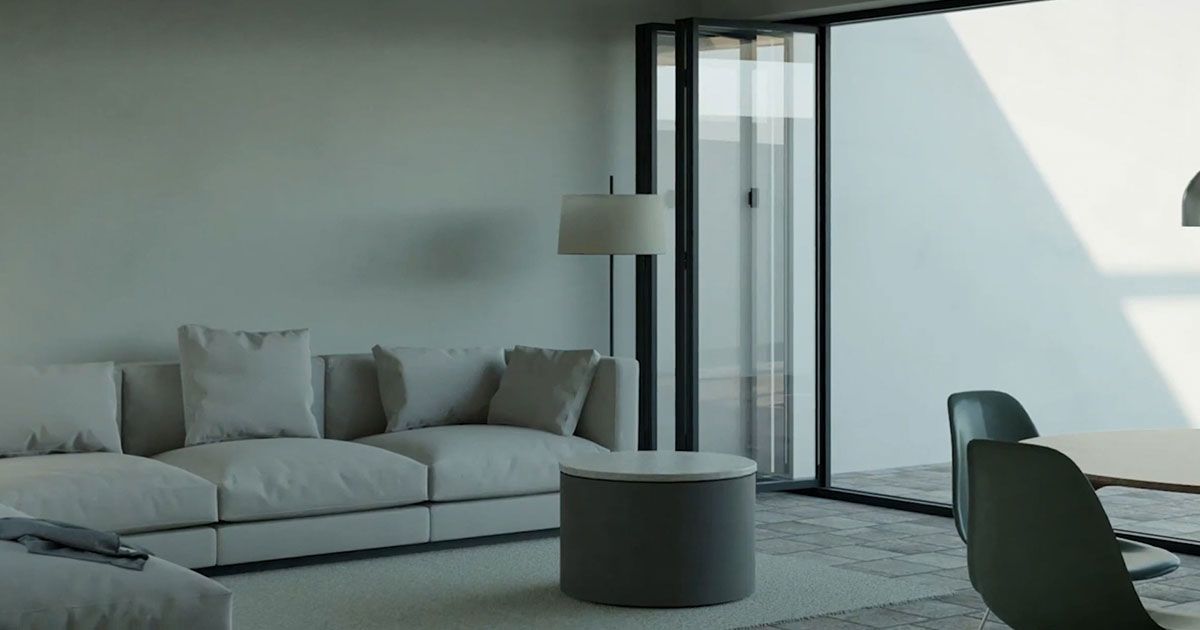
Learn the basic tools for natural and artificial lighting with V-Ray
When it comes to making a successful 3D architectural model, it is not enough just to take care of the physical objects: you also have to work on the lighting so that the final effect is as close to reality as possible, giving us a sample of what the project would look like if it was ever carried out.
To achieve precise and realistic lighting, one of the best options is to use the lighting tools of V-Ray Next, a rendering engine that completes the modeling capabilities of SketchUp.
In the following video tutorial, architect María Alarcón (@mariaalarcon_) teaches us the basics of lighting an architectural model created in SketchUp using the V-Ray Next rendering tools. Discover it below:
Before we start, remember that in the V-Ray interface, you can access all the lights you have placed in the scene in the right menu bar, in the Lights section of the Asset Editor. This is where we should go to see the first of our lights, Sunlight.
Sunlight
To see the features of your Sunlight, just select it from the right menu bar and click on the cogwheel icon (Settings) that you will see above it. By default, a Sunlight will be accompanied by an Environment.
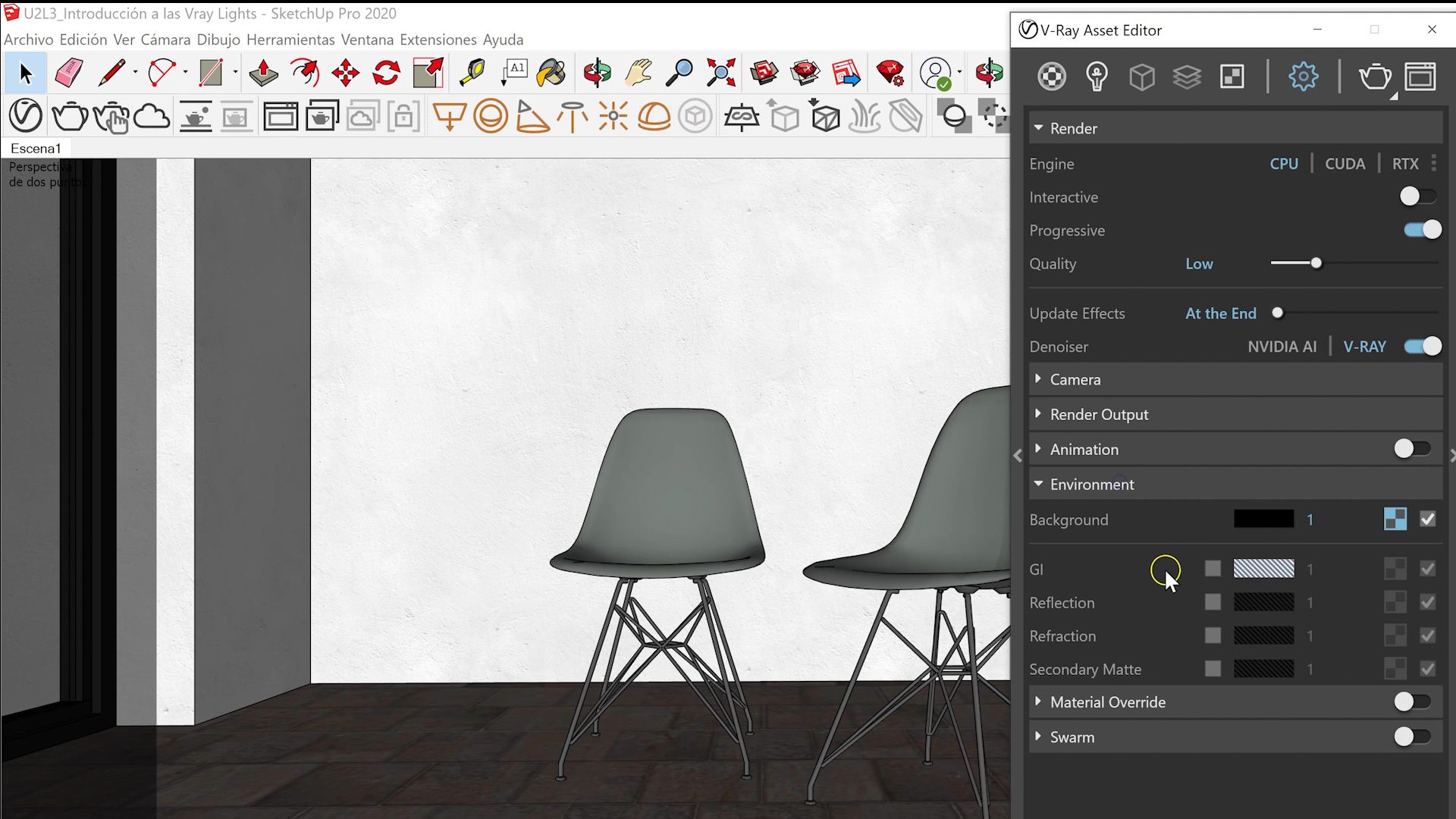
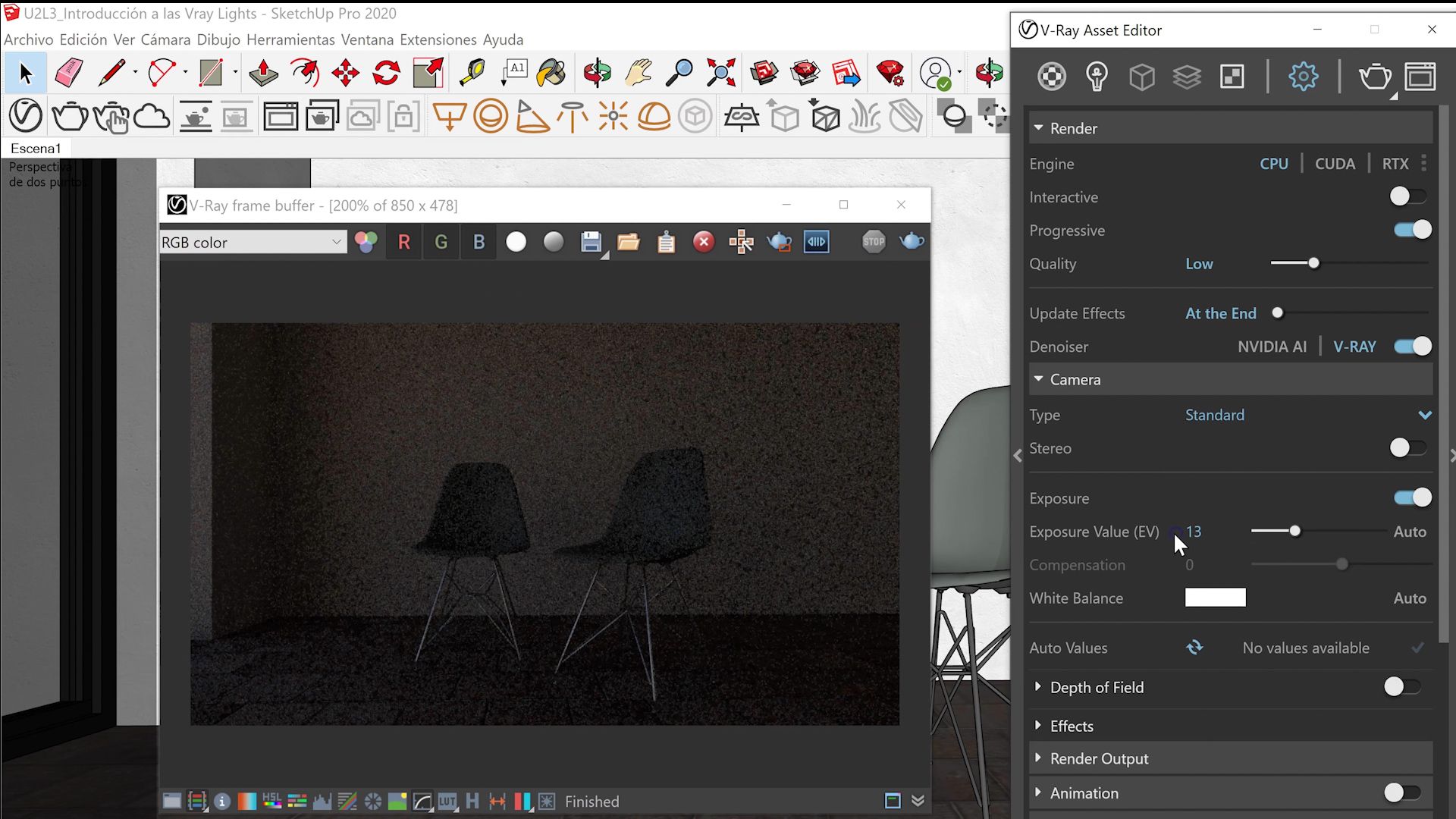
Make a render to check the effects of Sunlight on your scene. Just click on the Render icon next to Settings. If you see that the natural sunlight is not strong enough, you can raise the Exposure Value in the Sunlight Settings menu.
To start playing with other lights, turn off the Sunlight and the Environment in the Settings menu. Now, without any light, the scene should be dark.
Artificial lights are all those that, as their name suggests, do not come from a natural source, such as Sunlight. That does not mean, as we will see below, that we cannot use them to simulate natural light sources.
Basics of light planes
To create our first artificial light, go to the top toolbar and select Rectangle Light. Your pointer will be transformed and, by holding down, you can create a rectangular plane of light in your scene. Move it where you want: Maria, for example, places it in the window of her architectural model, to simulate sunlight. You will see that the light plane contains a red arrow inside; this arrow marks the direction of the light.
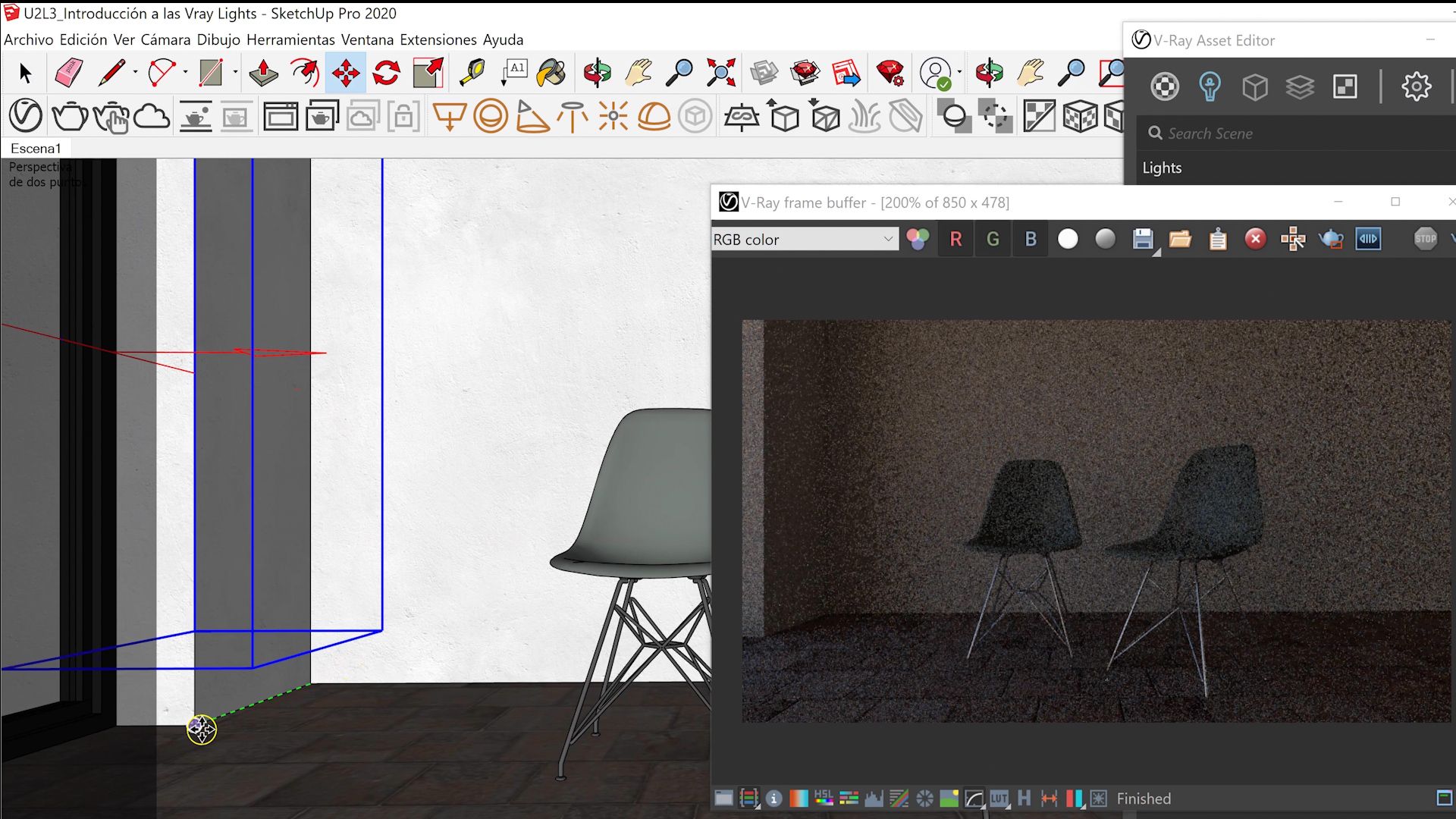
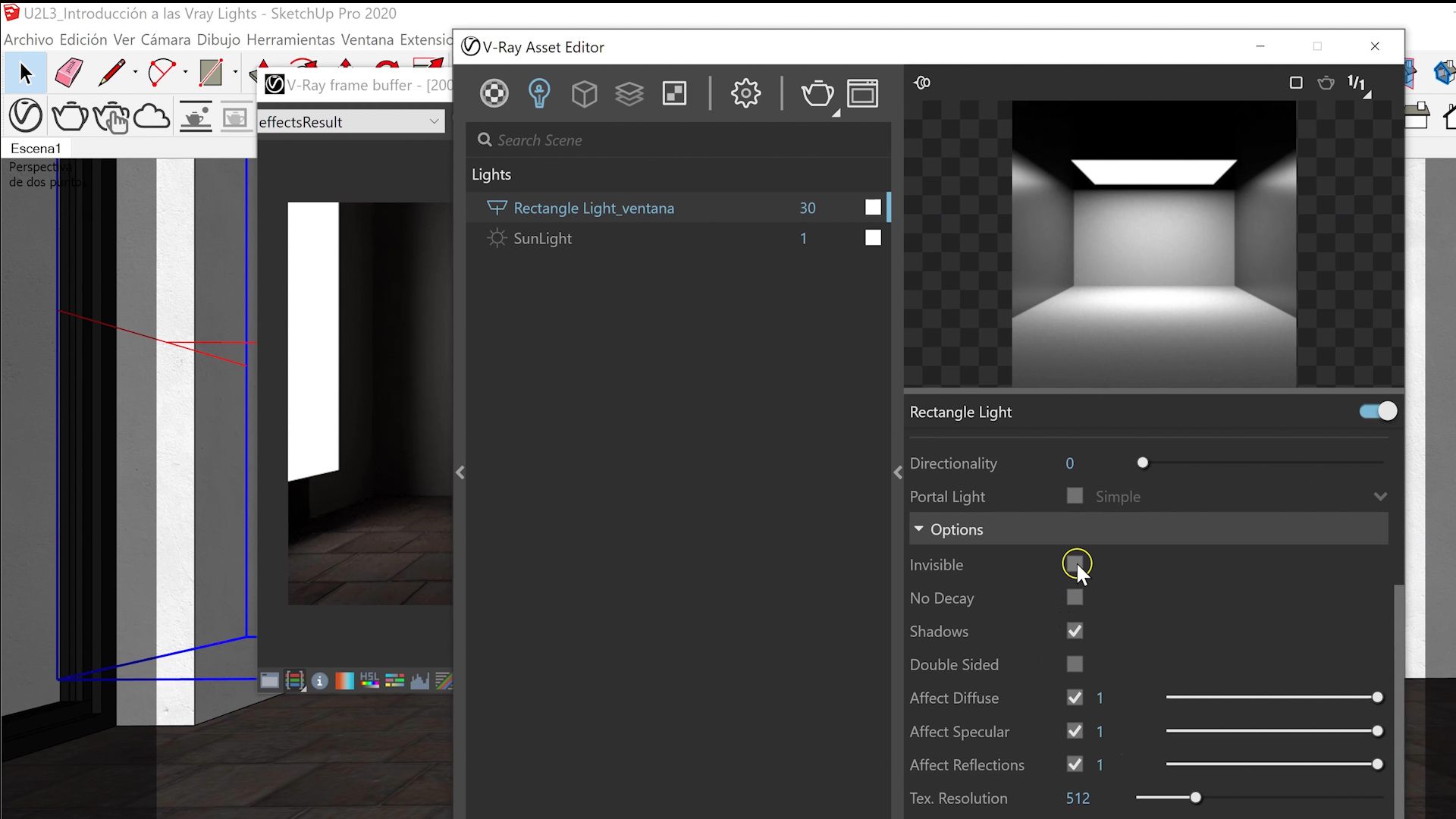
To check your progress, render the scene. It is likely that the light plane will appear in it. If you don't want it to be seen directly, but rather just show the effect it has on the scene, you can make it disappear by going to the right menu of Lights and then, further to the right, to the menu specific to the light plane you created.
Show and hide
In Options, choose Invisible to make the light bulb disappear. Also disable Affect Specular and Affect Reflection so that it does not reflect off of the glass and mirrors either.
Direction
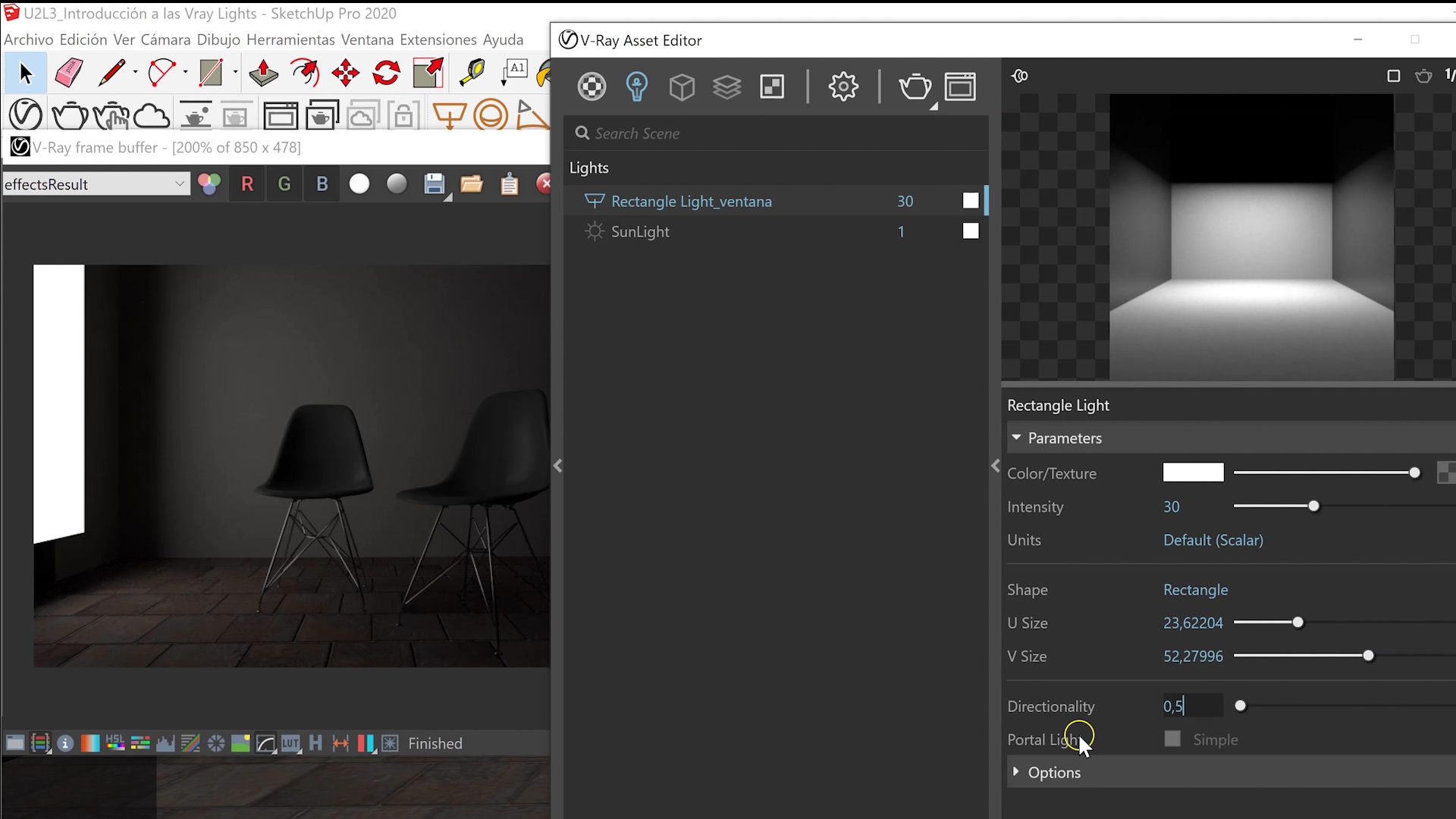
If you want to change the directional of the light (the direction in which it is projected), you can do so with the Directionality option. By default, it will be at 0; raise it to 0.5 to see how it varies, and adjust it as you wish. Render your scene to check your progress.
Other parameters
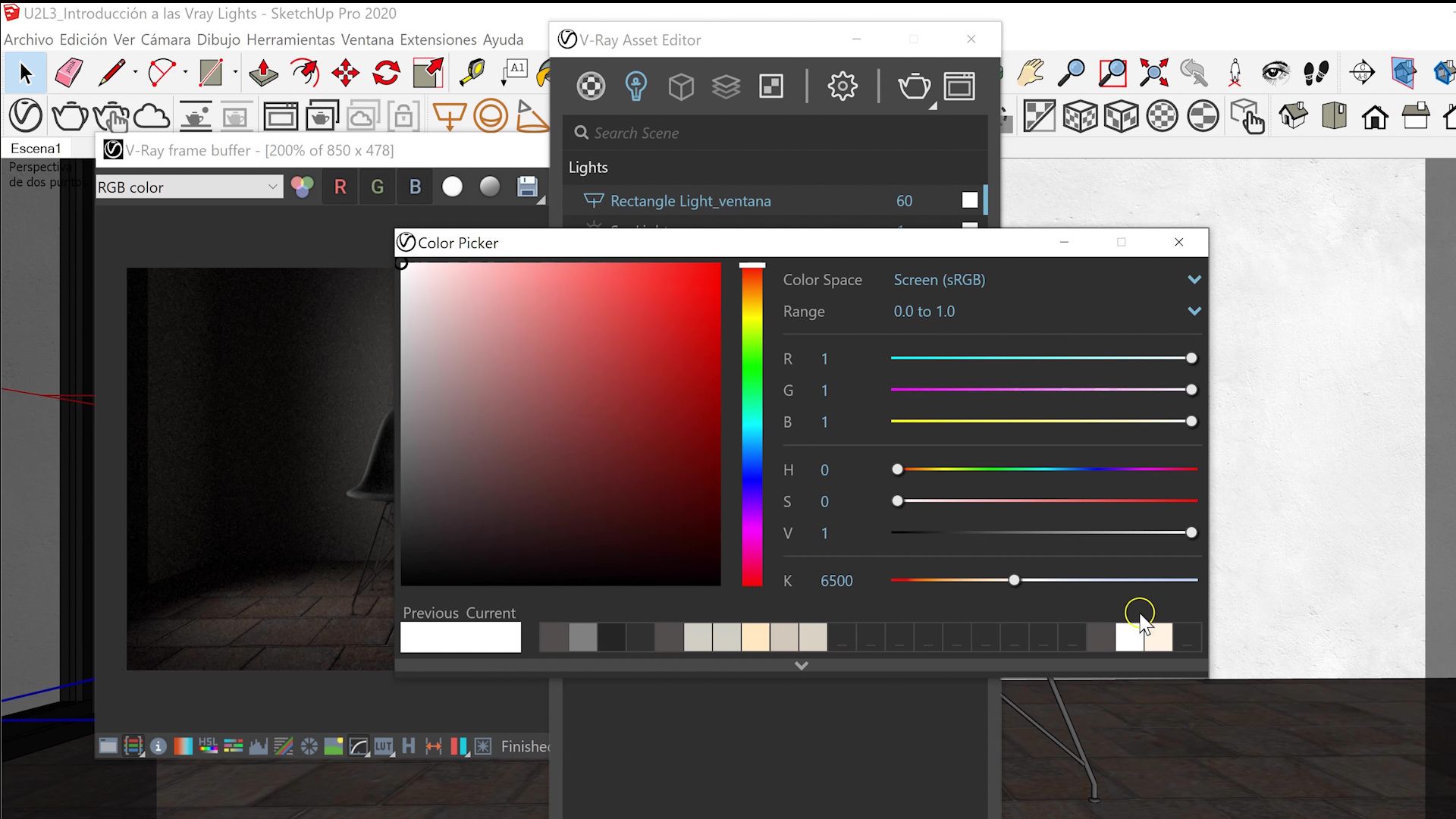
Other parameters you may want to modify are the intensity of the light (you can change this next to its name, in the Lights menu) and the color it emits (you can change this in the Lights menu, in Color/Texture, or by clicking directly on the little square next to the name of the light in Lights). On the Color Picker menu that appears, you can change the color temperature of the light next to the K (natural light is usually cooler).
Remember also that if you increase the size of the light plane it will increase its intensity. If you don't want this to happen, go to the light menu and in the Units option select Radiant Power.
Duplicating the planes
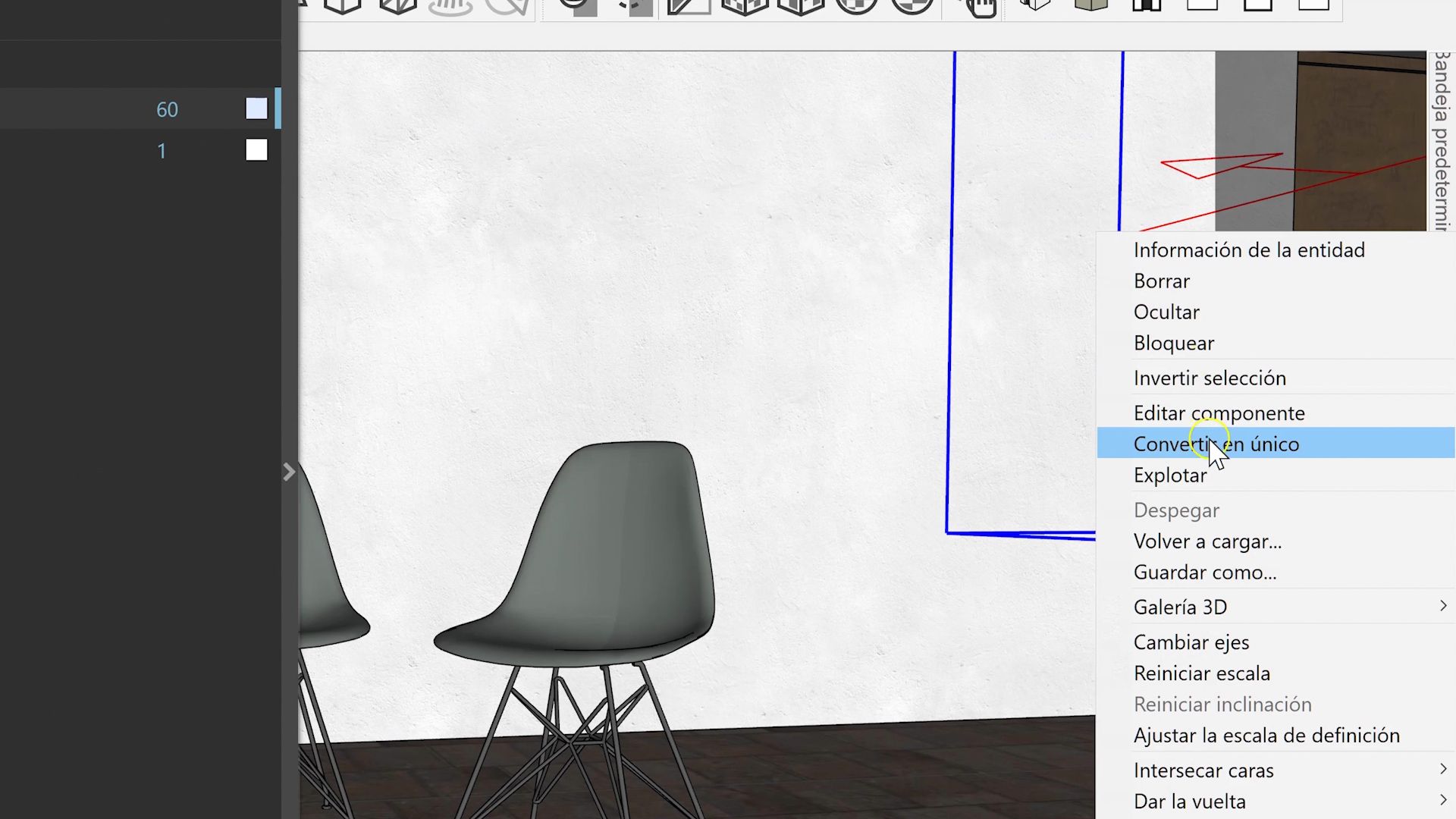
You can duplicate the light plane by pressing Ctrl and moving the duplicate to where you want to place it. If you enter the Asset Editor, you will see however that only the original plane appears, and not your copy; both planes will act as one and their characteristics will be identical. To have two independent light planes, just right click on the copied plane and select Convert to Single. At first, it will be edited as the original, but you will be able to enter its menu to modify what you need.
Changing the shape
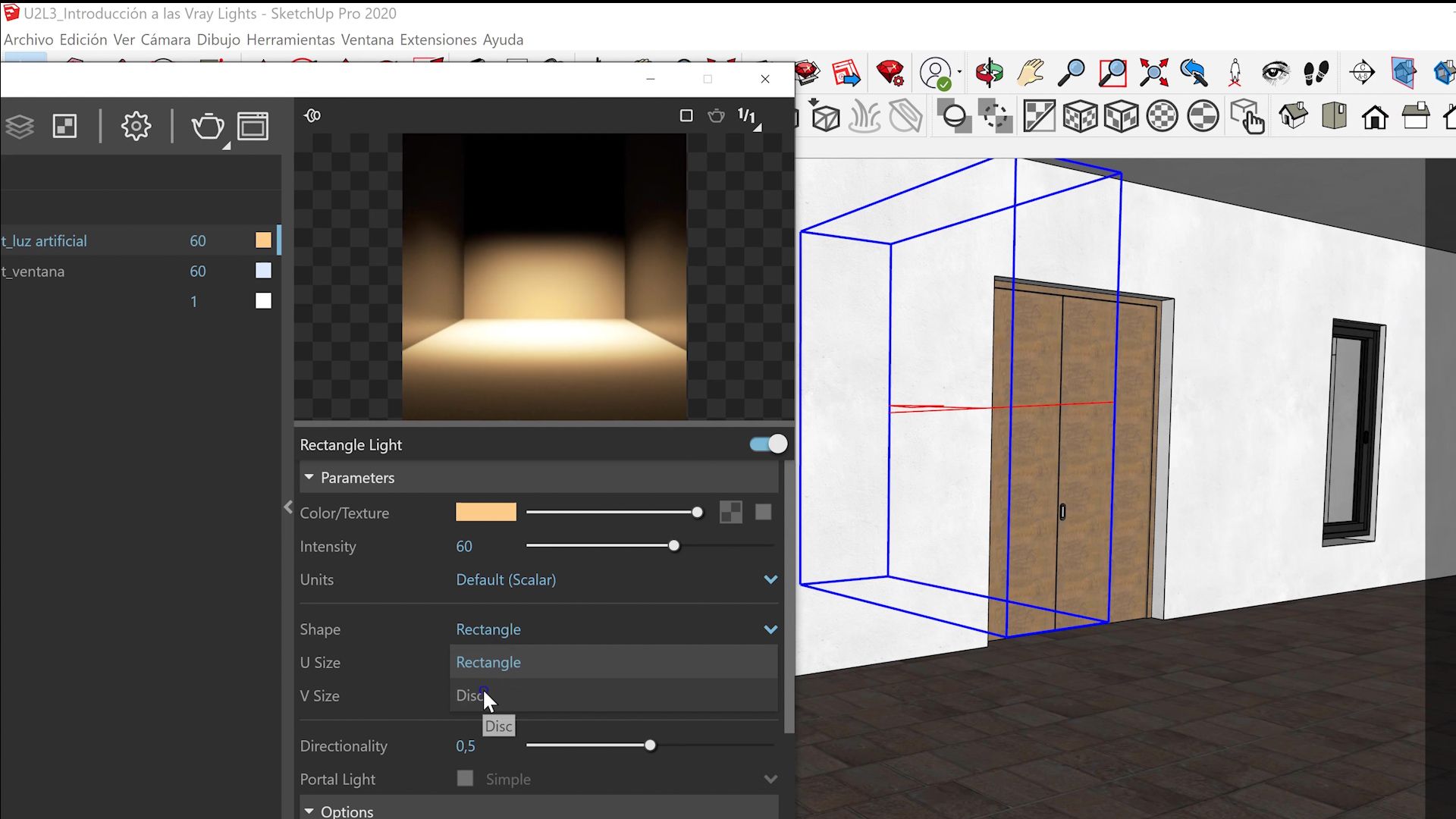
If for example you want your copied light to have another shape, go to its menu and select Disc in Shape. It will automatically be transformed into a disc, which you can modify just like you did with the rectangular shape.
The Frame buffer
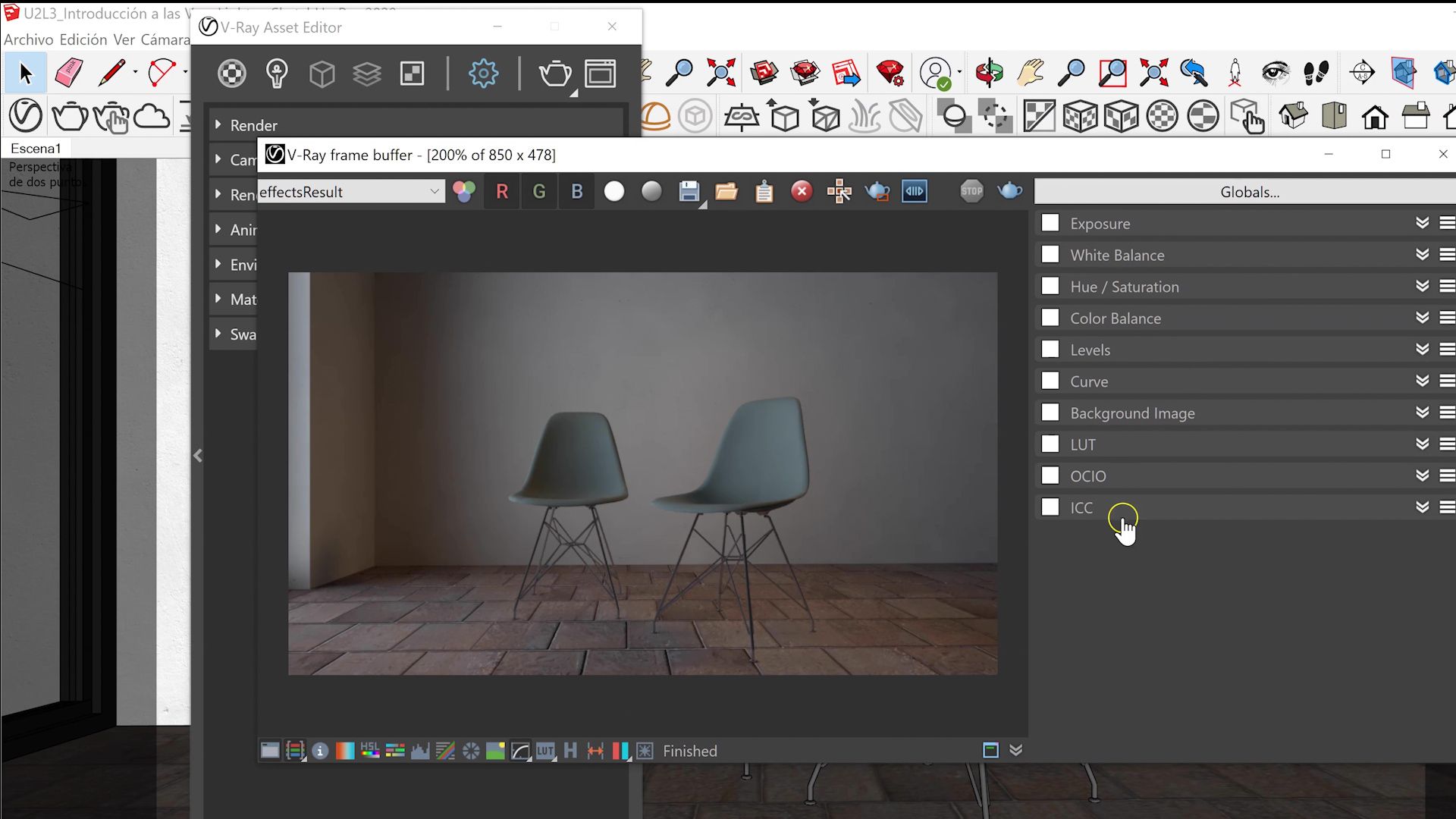
The frame buffer is the window that appears when we render our scene, which shows us the display of the render. If you go to its bottom, you will see a series of icons. Choose Show corrections control to be able to edit the image corrections of your scene more deeply.
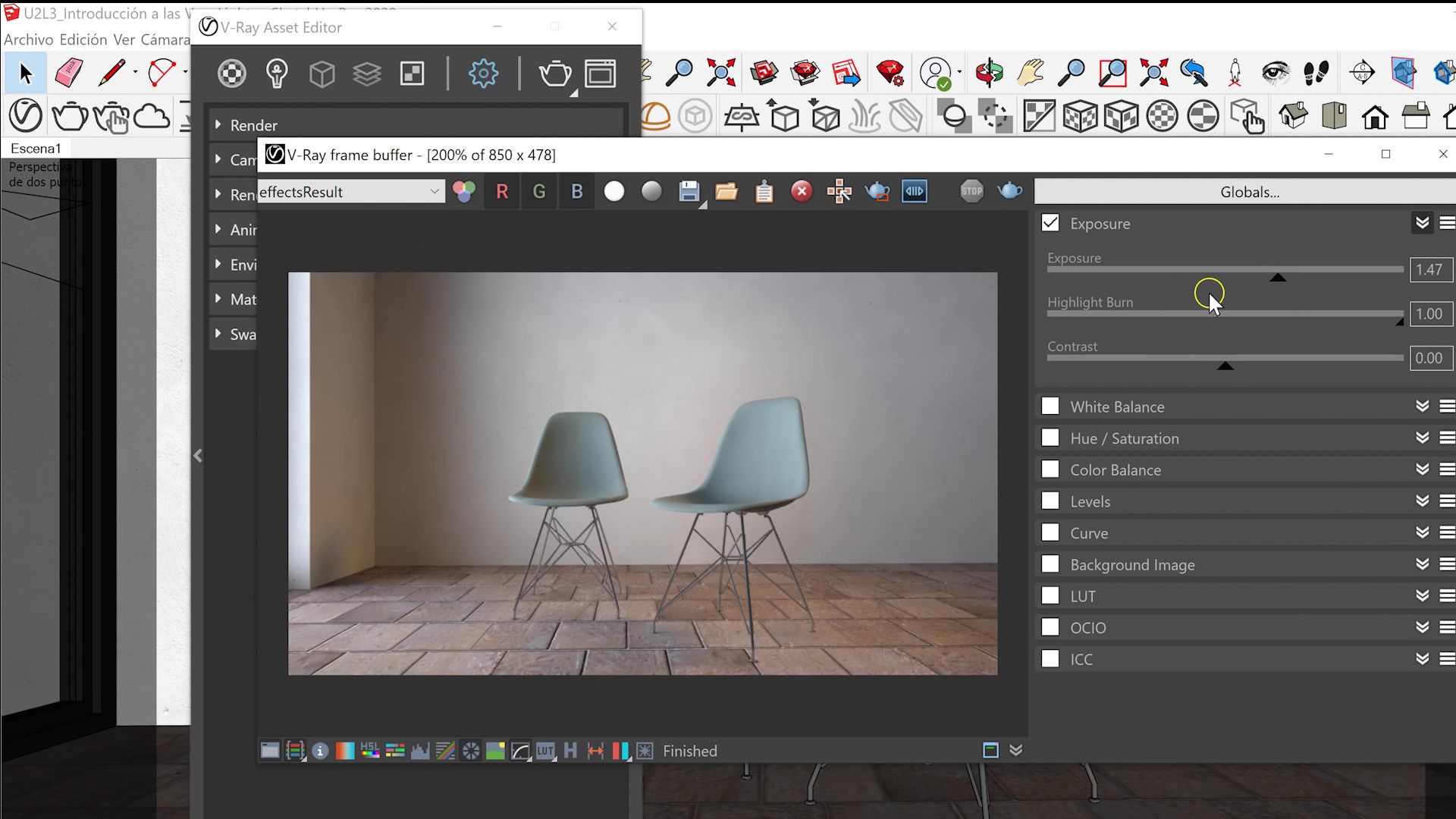
You can change the exposure as if it were a postproduction program. If, for example, when you increase it you see that there are areas that look burned out, too bright, you can activate Color Clamping (the icon next to Show Corrections Control). Colors will appear on the image indicating those burned areas. To remove them, you can lower the Highlight burn, in the Show Corrections Control menu.
IES Lights
The IES Lights or are lights that can be downloaded and pre-configured to be placed in our scene. To add one of them, go to the upper toolbar and click on the IES Light button. It will open a menu that will allow you to choose one of the IES Lights you have saved in your computer. Import the one you are interested in and place it in the scene.
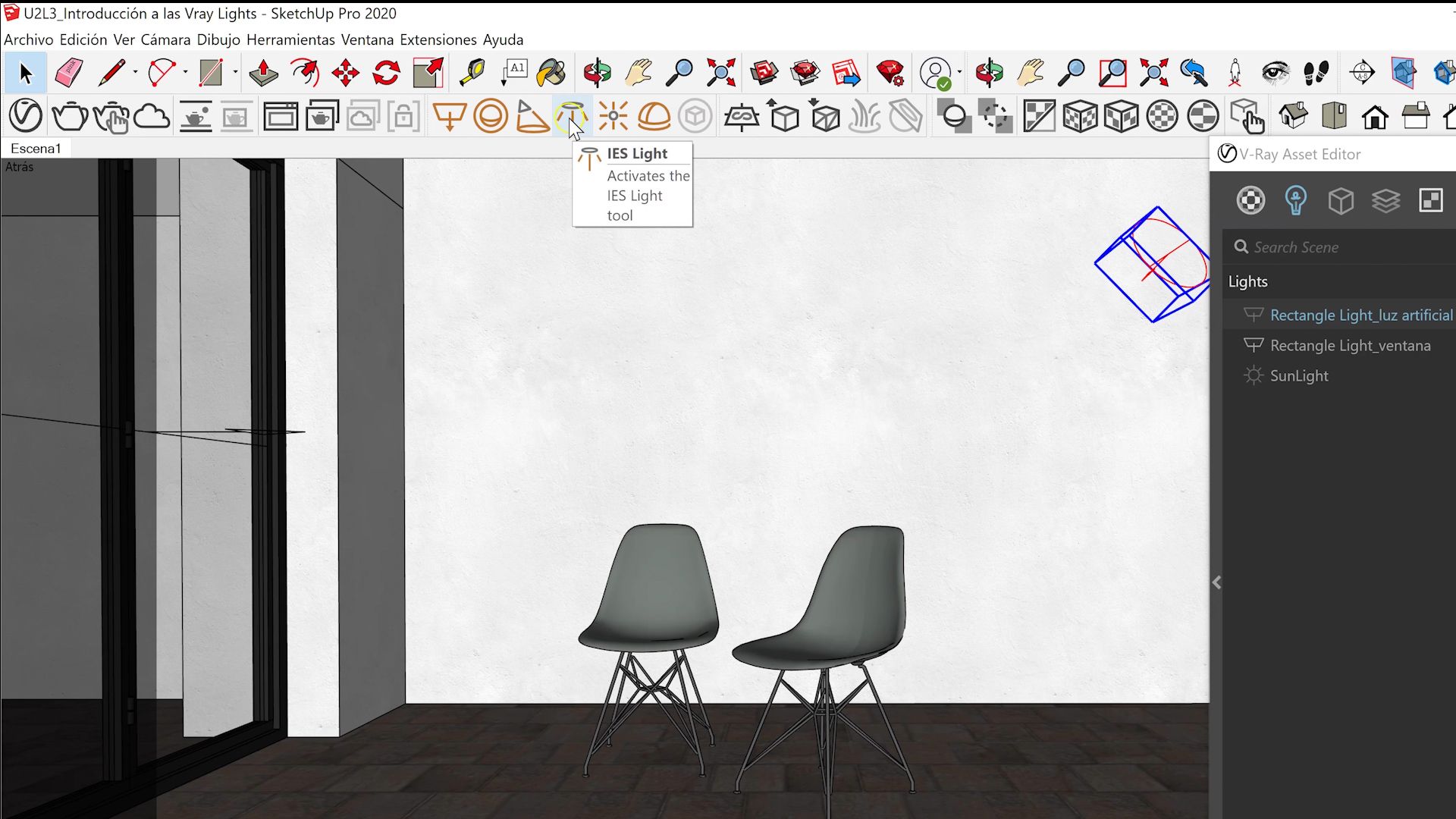
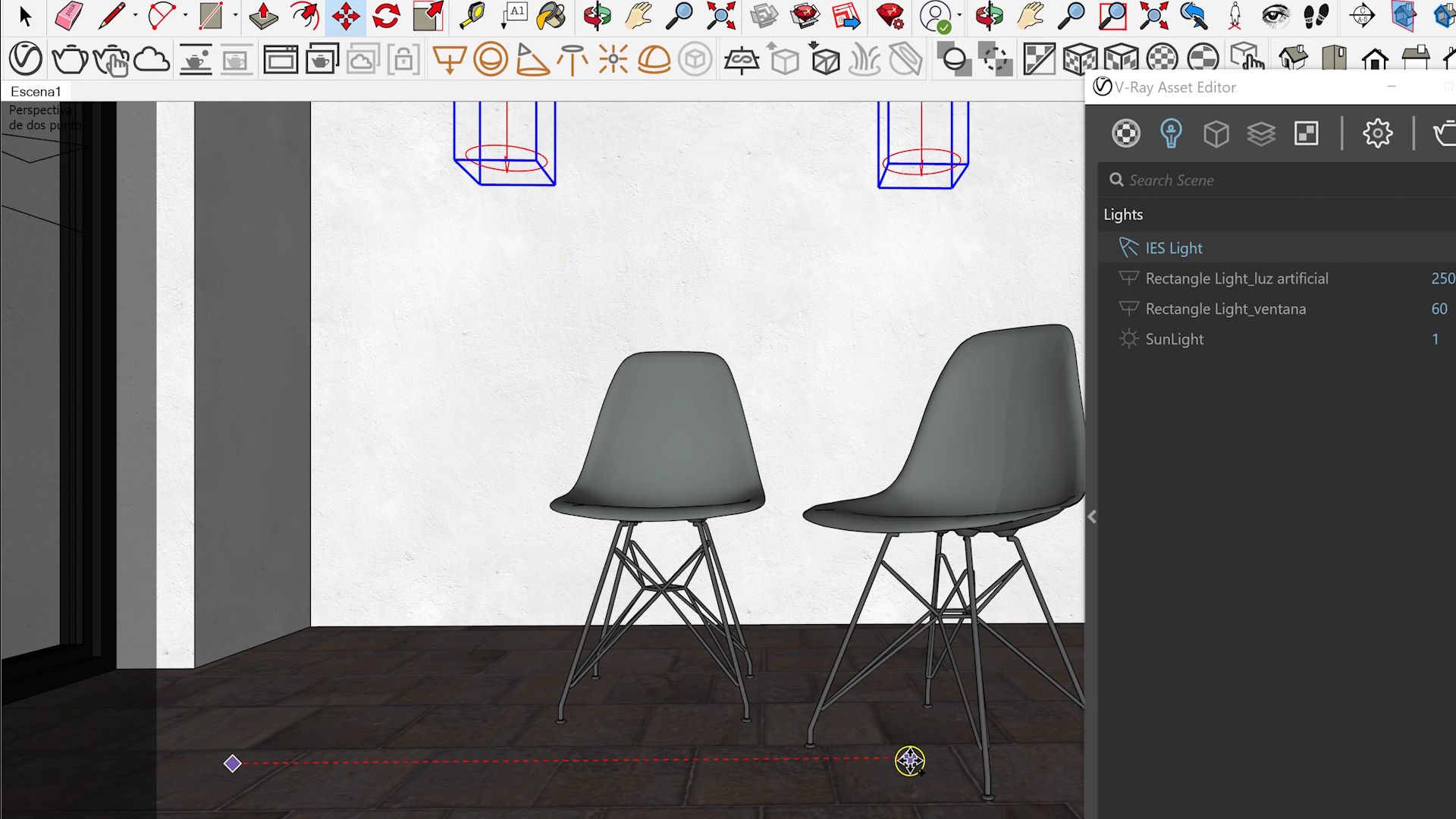
As with the lights we have detailed above, we can edit all the parameters of the IES lights: intensity, color, direction. A trick to copy color values, for example, is to copy from the little square next to the name of the light whose color you want to copy, and paste over the little square next to the name of the light whose color you want to change.
If you duplicate one of your IES lights and make the copy unique, you can link to any other IES light file you want, through the IES Light File in the light's options menu.
Other lights
Sphere Light
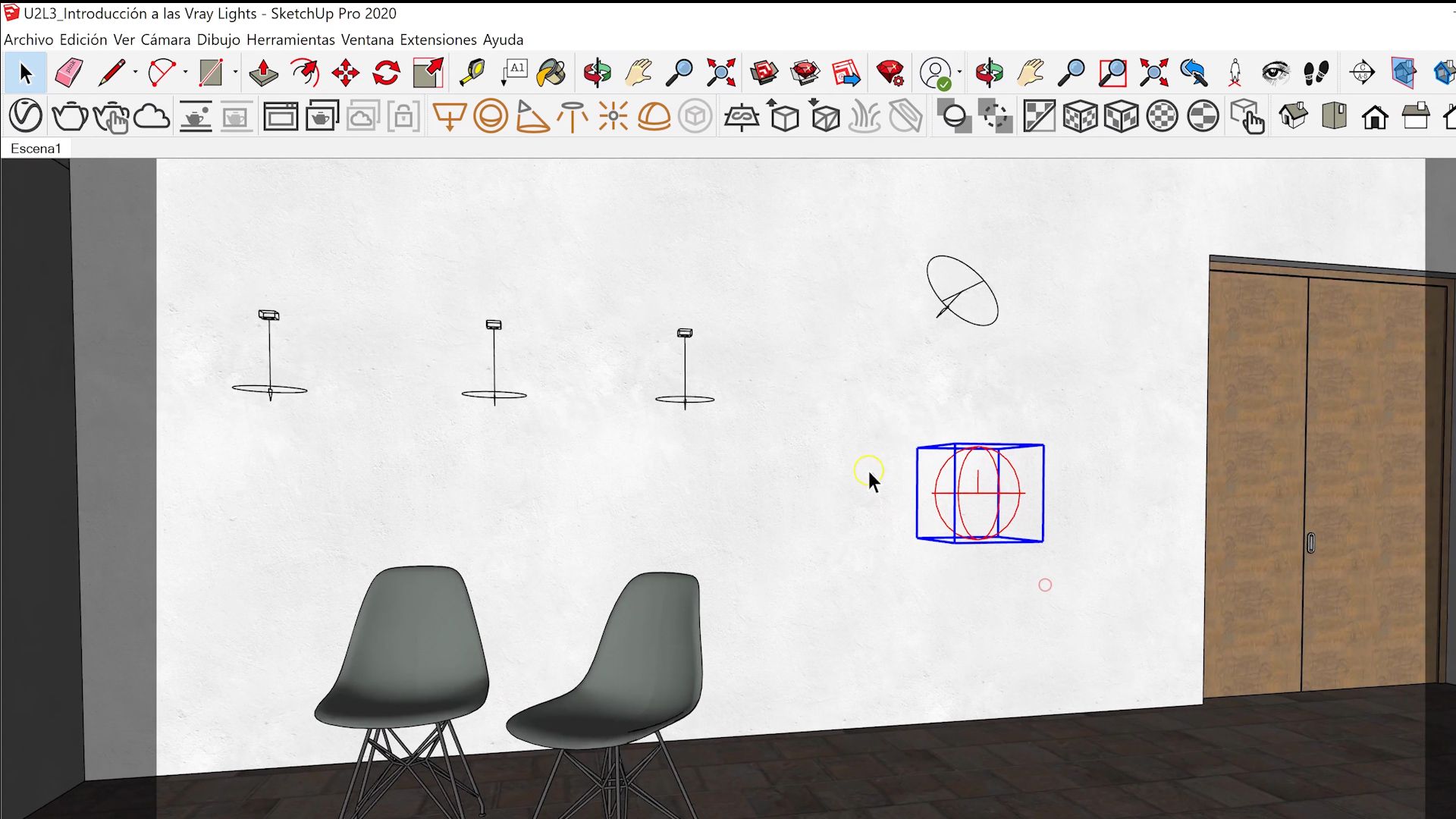
A Sphere Light is a light plane in the shape of a sphere, which emits light in all directions. We can change all its characteristics, as we have done with previous lights.
Dome Light
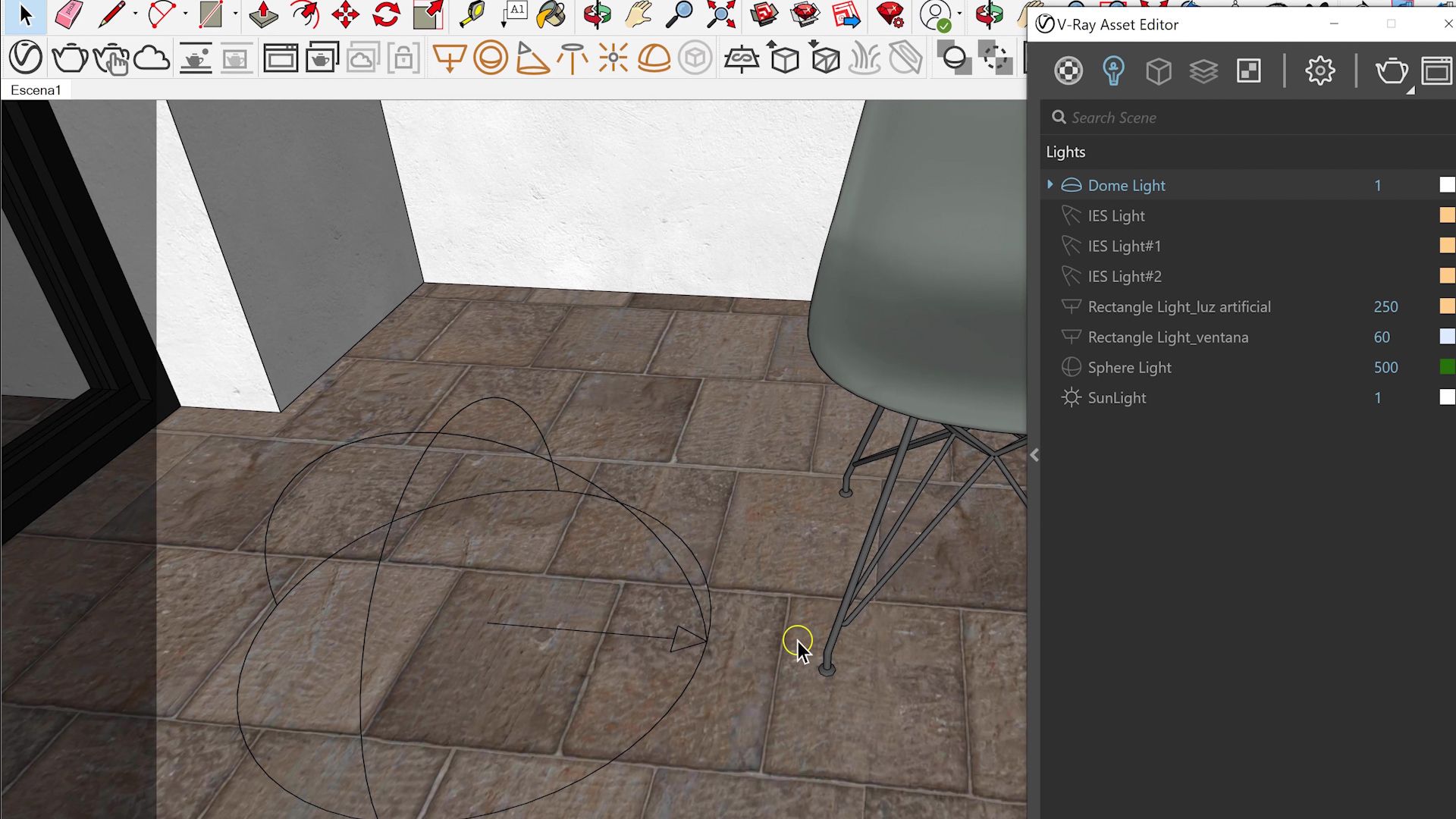
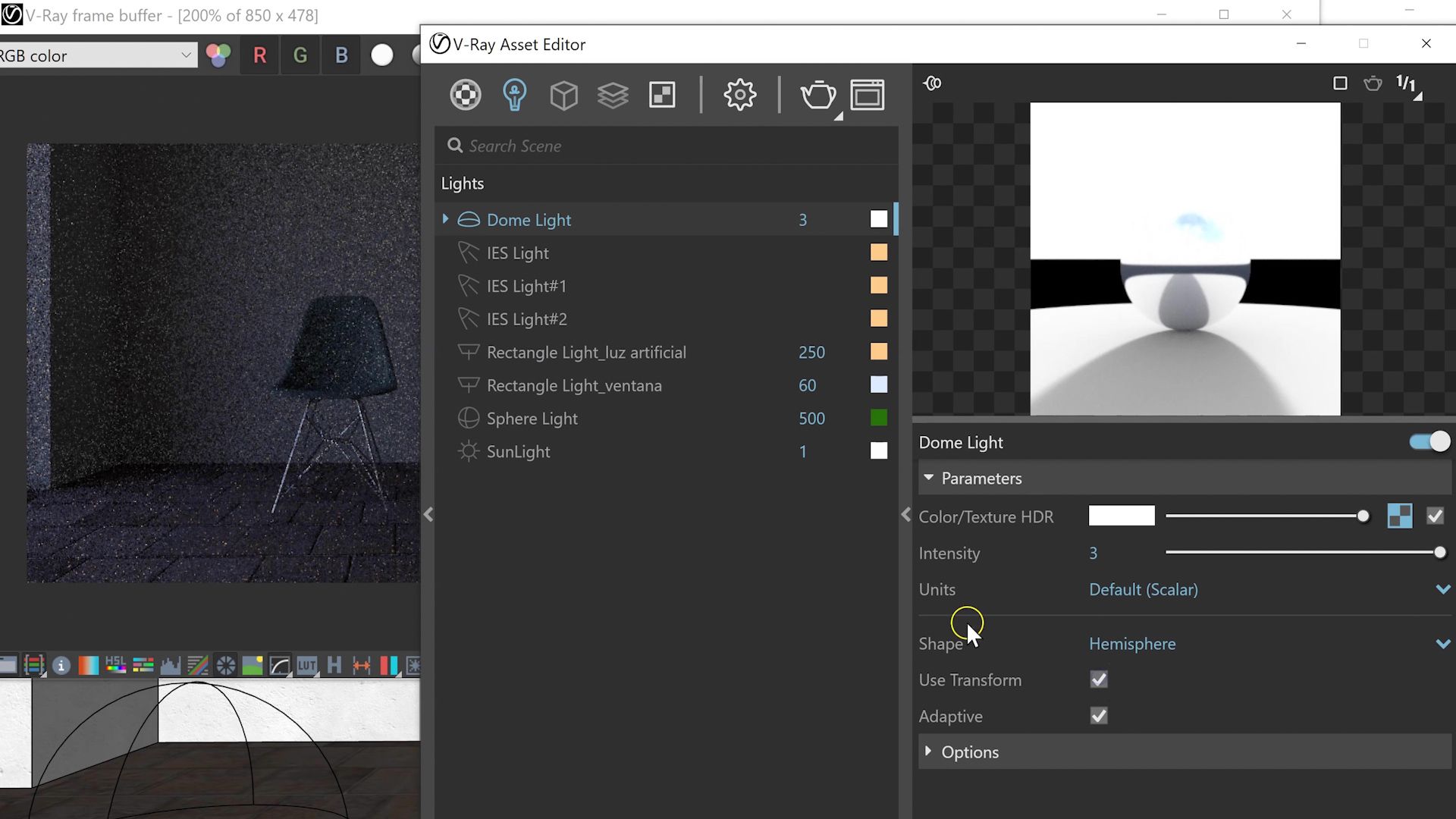
A Dome Light is a dome of light that surrounds our model. Usually, the Dome Light will have an associated sky texture; the arrow inside the Dome Light indicates where the Sun is located in your artificial sky.
If you want to turn the Dome Light to change the position of the Sun, activate Use Transform in the light menu. Now, you can rotate it to place the Sun where you want it.
Dome Lights are commonly used as an addition to the natural light of the Sunlight. To do this, both lights must be linked together. Activate Sunlight and then Environment in its options menu, copy the Background texture and go to the Dome Light options menu. Once there, remove the default texture from Color/Texture HDR and paste the texture associated with Sunlight as Instance. Don't forget to make the Dome Light invisible to finish this process.
If you liked this tutorial, you can learn more from María on her course Architectural Visualization with V-Ray Next for SketchUp, in which she shares the basics of lighting, materials, and cameras to create realistic scenes quickly.
You may also like:
- Great Architectural Photographers
- What is a Scale Model and How Do You Create One?
- SketchUp Tutorial: How to Import a CAD File to SketchUp


0 comments