


Procreate Tutorial: How to Create a Drawing Brush
Steps to create and configure a round brush for realistic painting in Procreate with Jaime Sanjuan
With the Procreate revolution, many have been encouraged to draw and design with an iPad or an iPhone, among them the illustrator and concept artist Jaime Sanjuan (@jaime_sanjuan_ocabo). In this tutorial, Jaime shows you one of the first steps in Procreate: how to create a brush and add it to your brush library. Specifically a circular brush, very useful for drawing and which is not default in Procreate.
How do I create a new brush?
To include a new brush you have to go to the “My Brushes” section and add one there. To create this specifically, we will insert an image of the circle (downloadable below), which will be the base of the brush.
Once the circle image is selected and included, we can begin to modify it to convert it into the brush we want. In this case we want it to be totally opaque.
Join for Free and download
Círculo.jpg
How is the brush optimized?
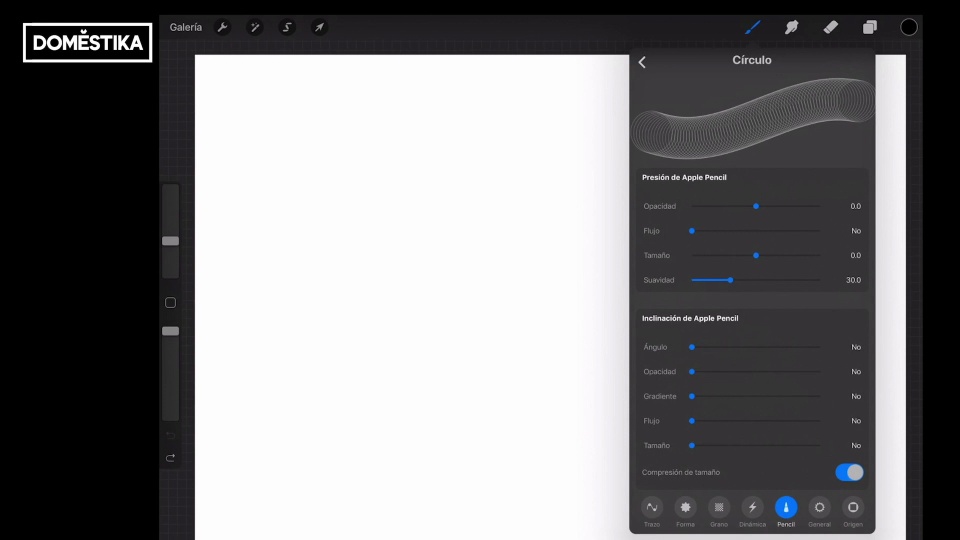
So that the brush does not make small circles in a row and we can control the size, among other things, we must optimize the brush.
The best way to do this is by modifying the parameters that Procreate offers such as Stroke, Shape, Grain, Dynamics, Pencil, General, Origin... A series of properties that will allow the brush to do what we want it to do and its stroke. be what we hope it will be.
In the video tutorial, Jaime lists each one of them and explains what its modifications are to make it easier to copy it.
Save the brush
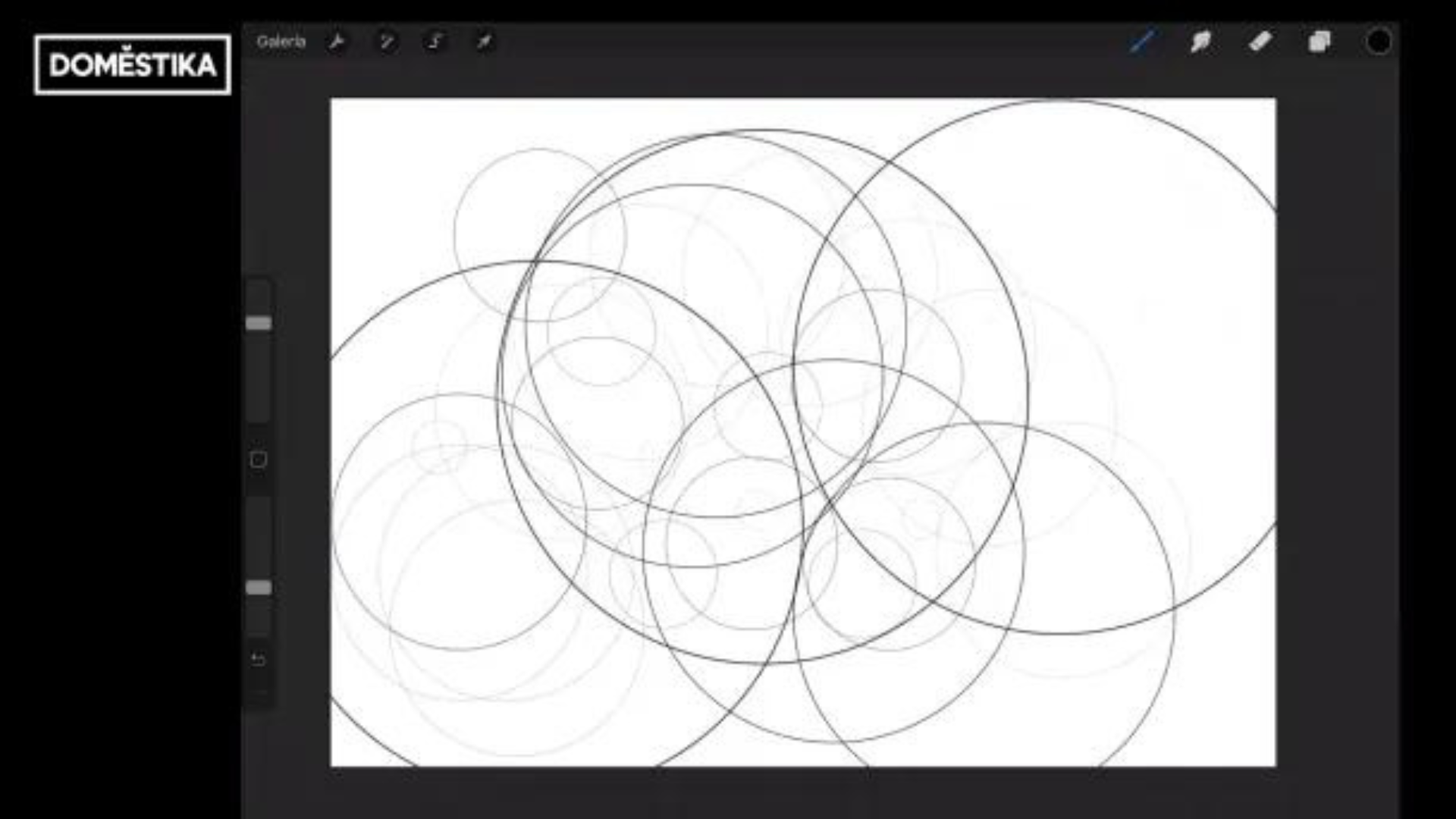
To save the brush, the first thing to be clear about is the name we are going to give it, in this case Jaime simply uses "Circle". This round brush model will help us make others with the same parameters, it is only necessary to duplicate the brush and change the original shape.
If you want to learn more Procreate with Jaime Sanjuan in his course Realistic painting and illustration with Procreate teaches you how to realistically illustrate a completely surreal situation using the Procreate app and your fingers.
It may interest you:
- Digital illustration with Procreate, a course by Óscar Lloréns
- Introduction to lettering with Procreate, a course by Daniel Hosoya
- Creation of miniature 3D worlds with Procreate and Cinema 4D, a course by Santiago Moriv
- Calligraphy and lettering for Instagram with Procreate, a course from Nubia Navarrese


0 comments