


Procreate Tutorial: Key Animated Illustration Shortcuts
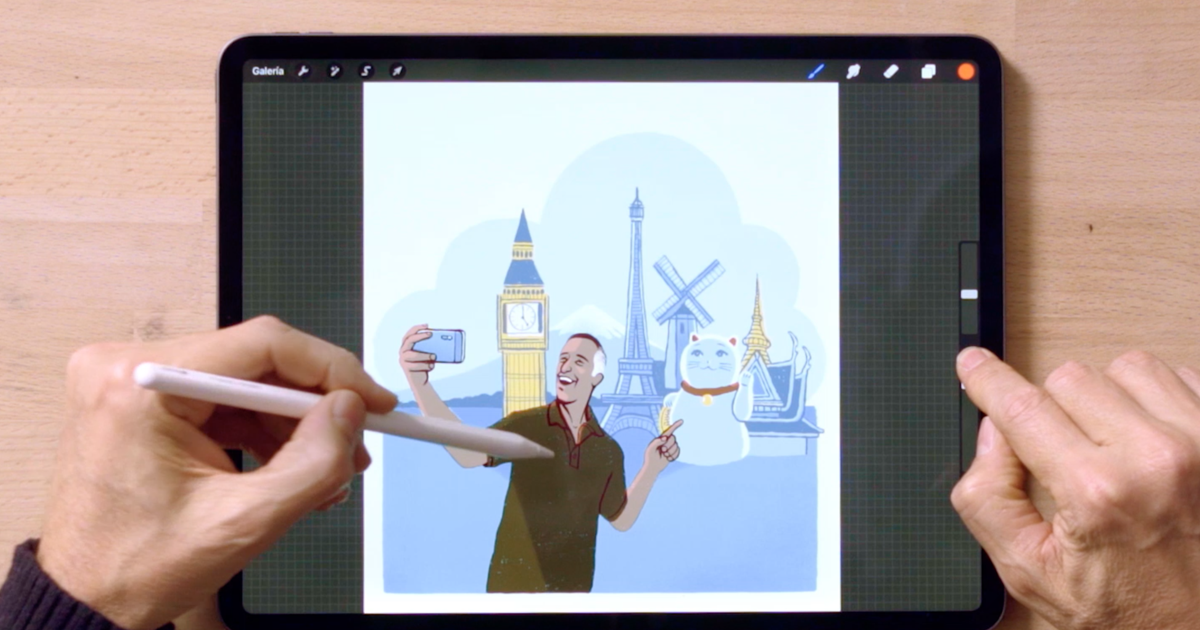
Discover the basic keyboard shortcuts you need to animate your Procreate illustrations, with Martin Tognola
Procreate is an app illustrators love. Because it’s very intuitive and easy to use on an iPad. Keyboard shortcuts allow you to streamline your work to the comfort of your fingertips or digital pencil.
Illustrator Martín Tognola (@martin_tognola) has over 25 years’ experience and an extensive client portfolio including: The New York Times, BMW, Samsung and Citibank. He recommends a few easy shortcuts to speed up your animated illustrations in Procreate.
Don’t miss his tutorial!

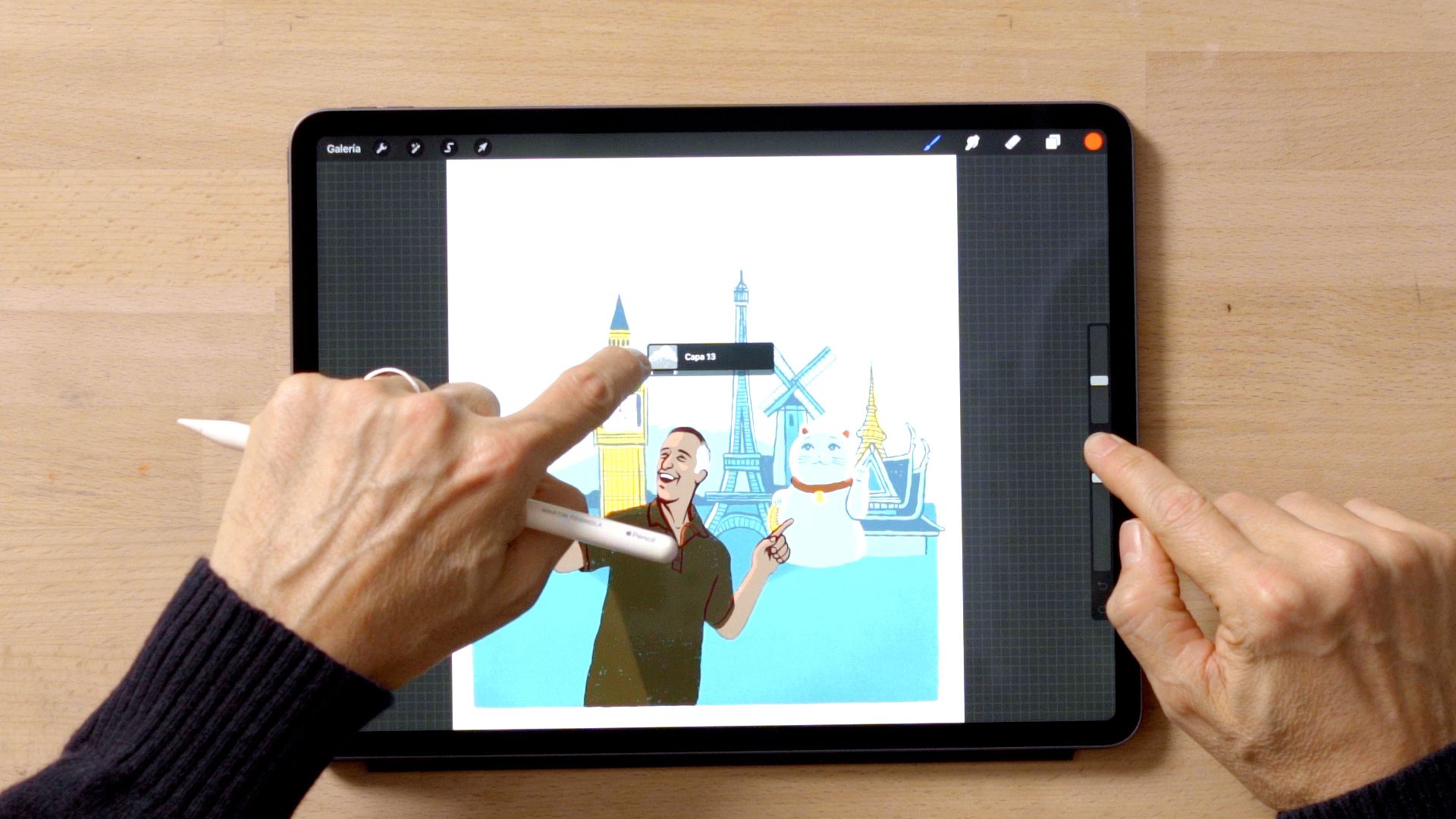
Square + Touch → View image layers
Hold down the square button on your iPad and slide your finger over the screen to view all the layers in your image. This will help you select one to work on.
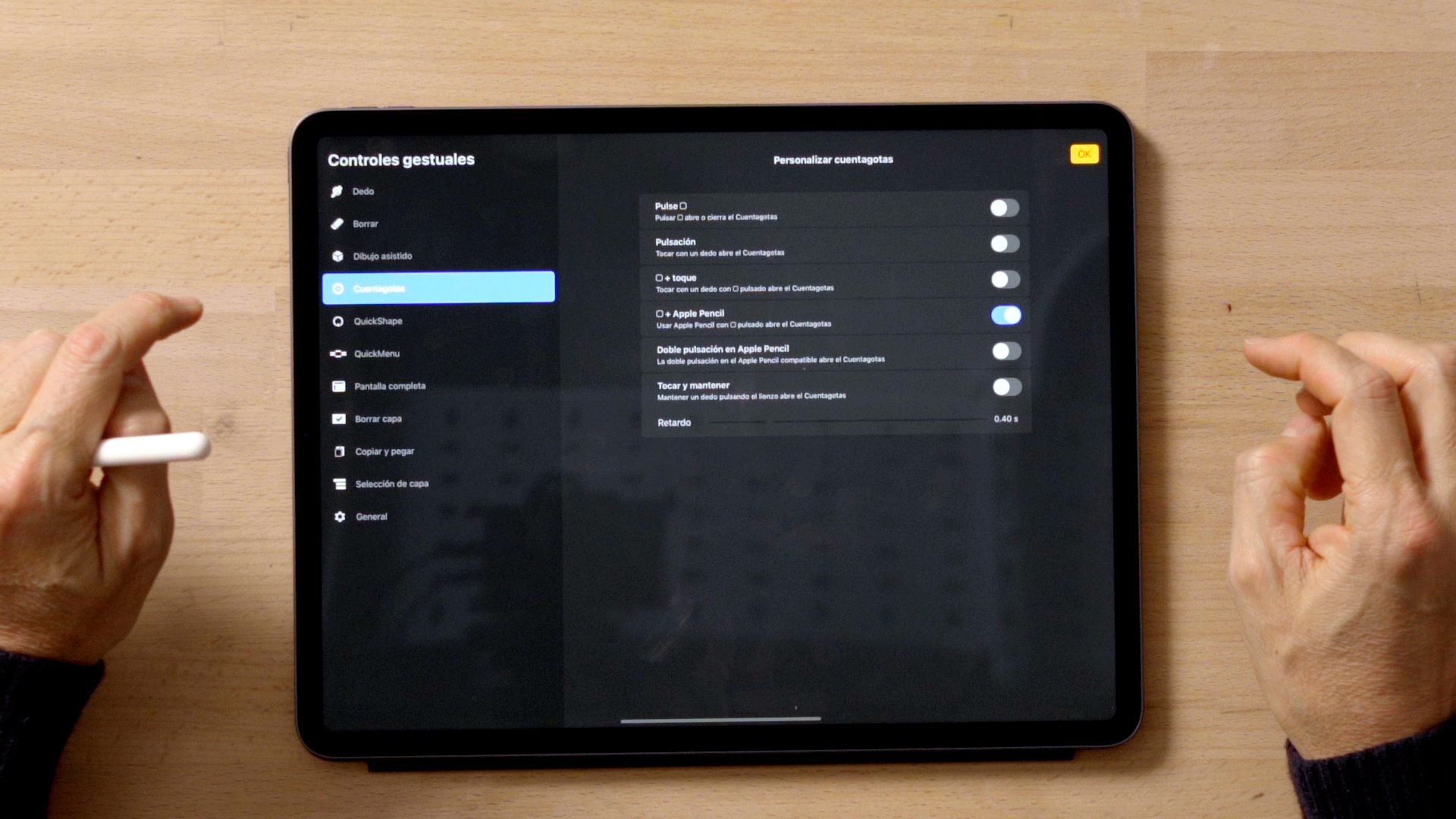
In Procreate, go to the top left hand corner Actions menu, select the Options tab then open the Gesture Controls menu to activate Layer Selection.

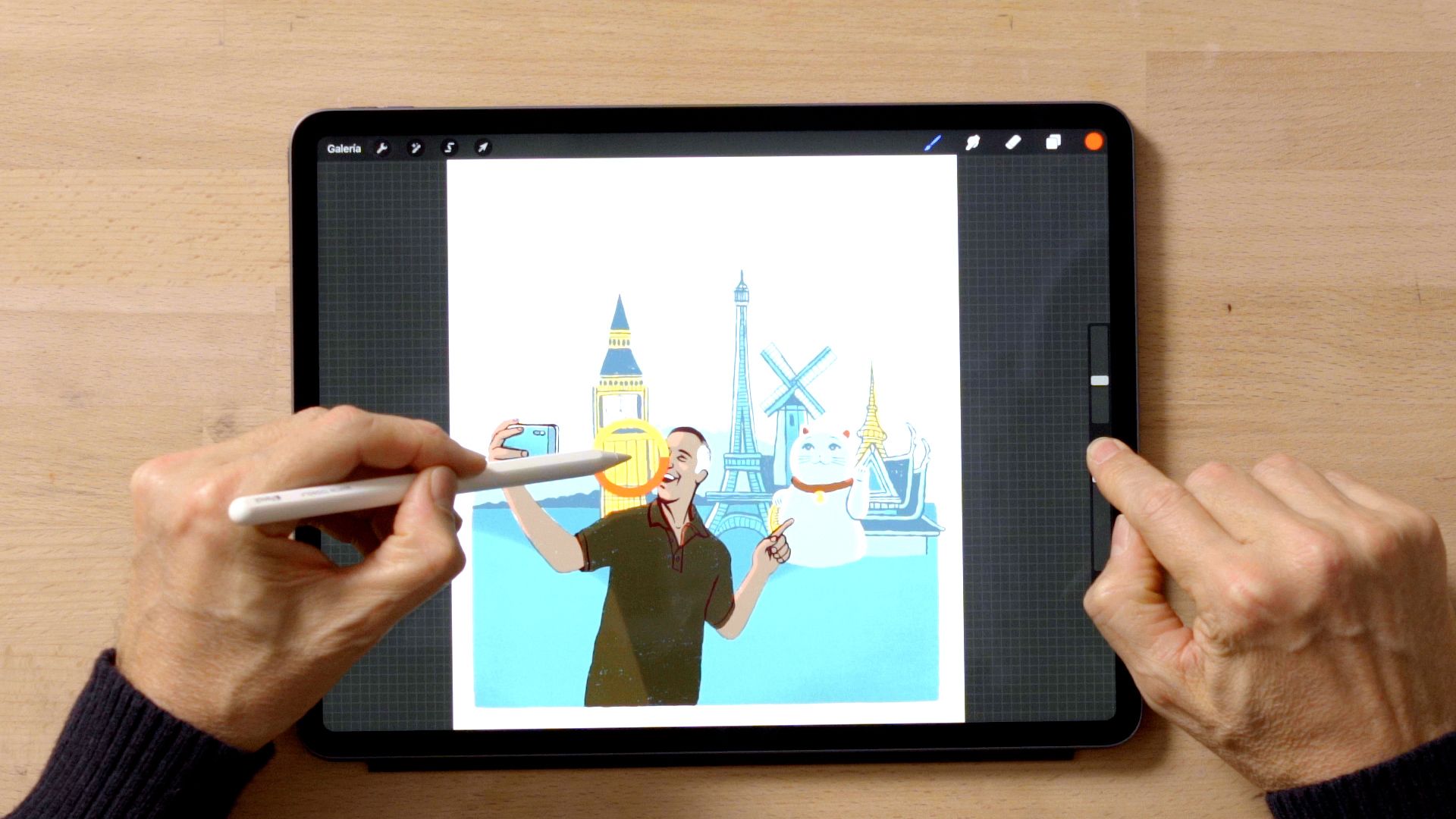
Square + Pencil → Color retouch
In the same Gesture Controls menu select the Eyedropper to activate the shortcut allowing you to hold down the square and move the digital pencil over your screen and select and retouch your image colors.
Import color palette
To import a color palette and work on it in Procreate, gently slide your finger upwards on the lower area of your iPad to open the Dock, then drag the Photos app into Procreate.
Select the Color menu in the top right hand corner to display the color palettes. Then use your finger to drag your chosen photo over the palettes to import the colors from this image.
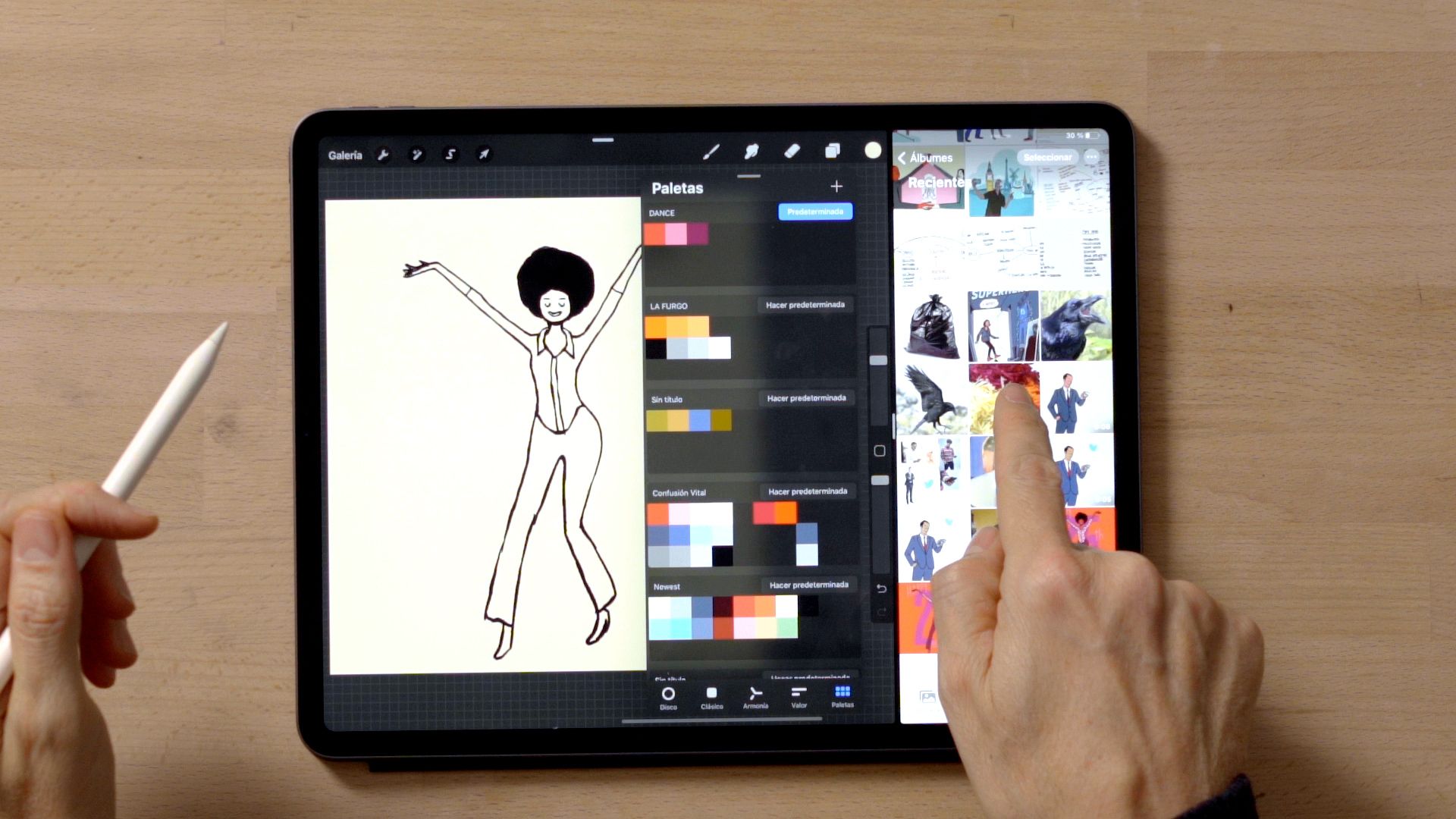
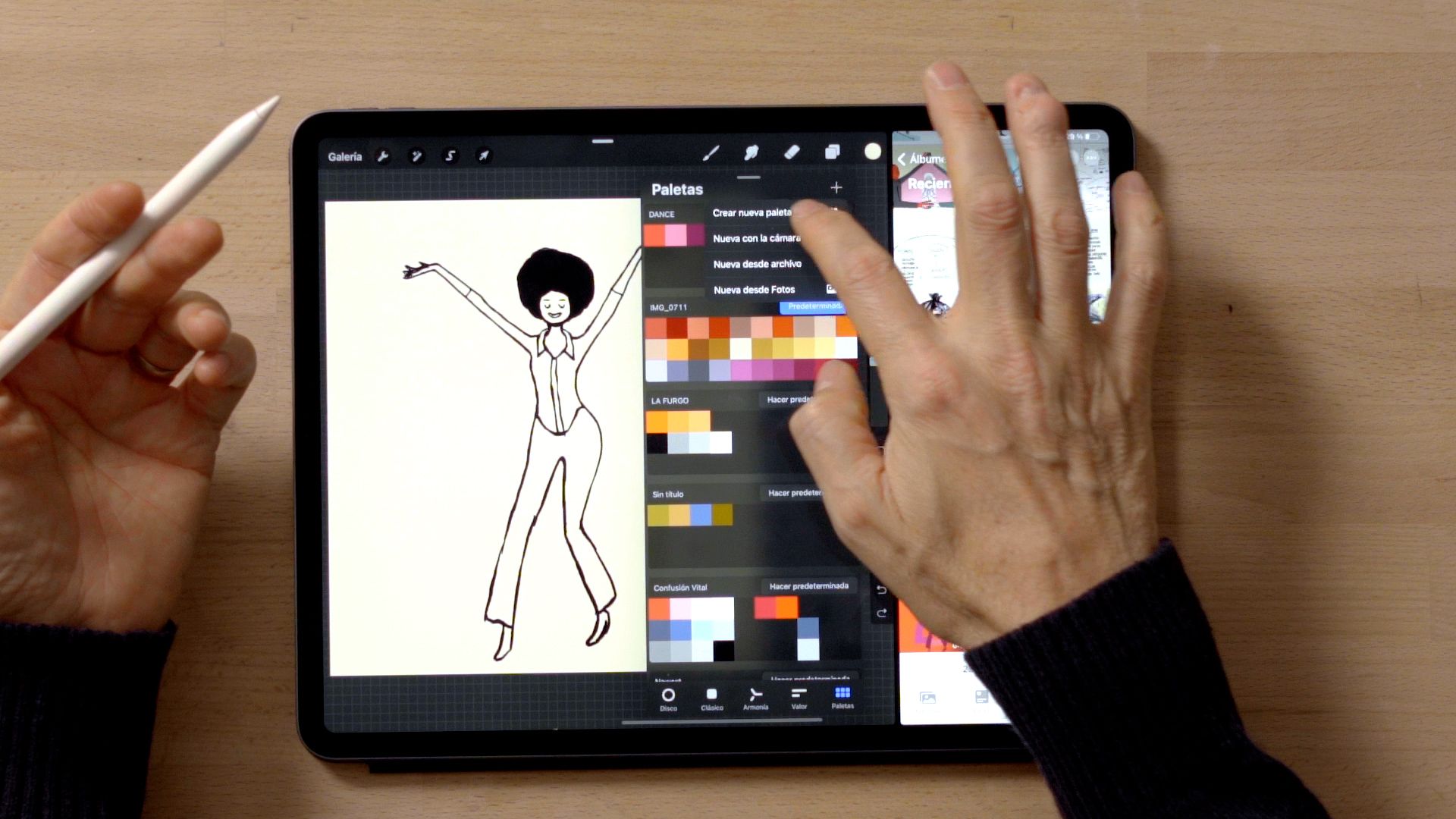
If you don’t want to use a lot of colors, and prefer to focus on the specific shades in a particular palette, go to the Palettes menu and hold down the + icon to create a new palette. Then use your finger to drag your preferred colors into the new palette.
Zoom in or out of the image using your fingers
It’s often useful to be able to zoom in or out of an image to retouch fine details in your illustration. Simply pinch the screen using two fingers to return to the original image size.

Undo and redo with your fingers
To undo something in Procreate in the way you would using Command+Z (in iOS) or Control+Z (in Windows), simply tap the screen twice with both fingers. Repeat this action, this time with three fingers, to re-do or repeat.
Working with separate layers
The Reference command is a great way to work with different layers. If you want to edit one specific layer, for example to color the trousers worn by an illustrated character, select the layer you wish to work on and select Reference.
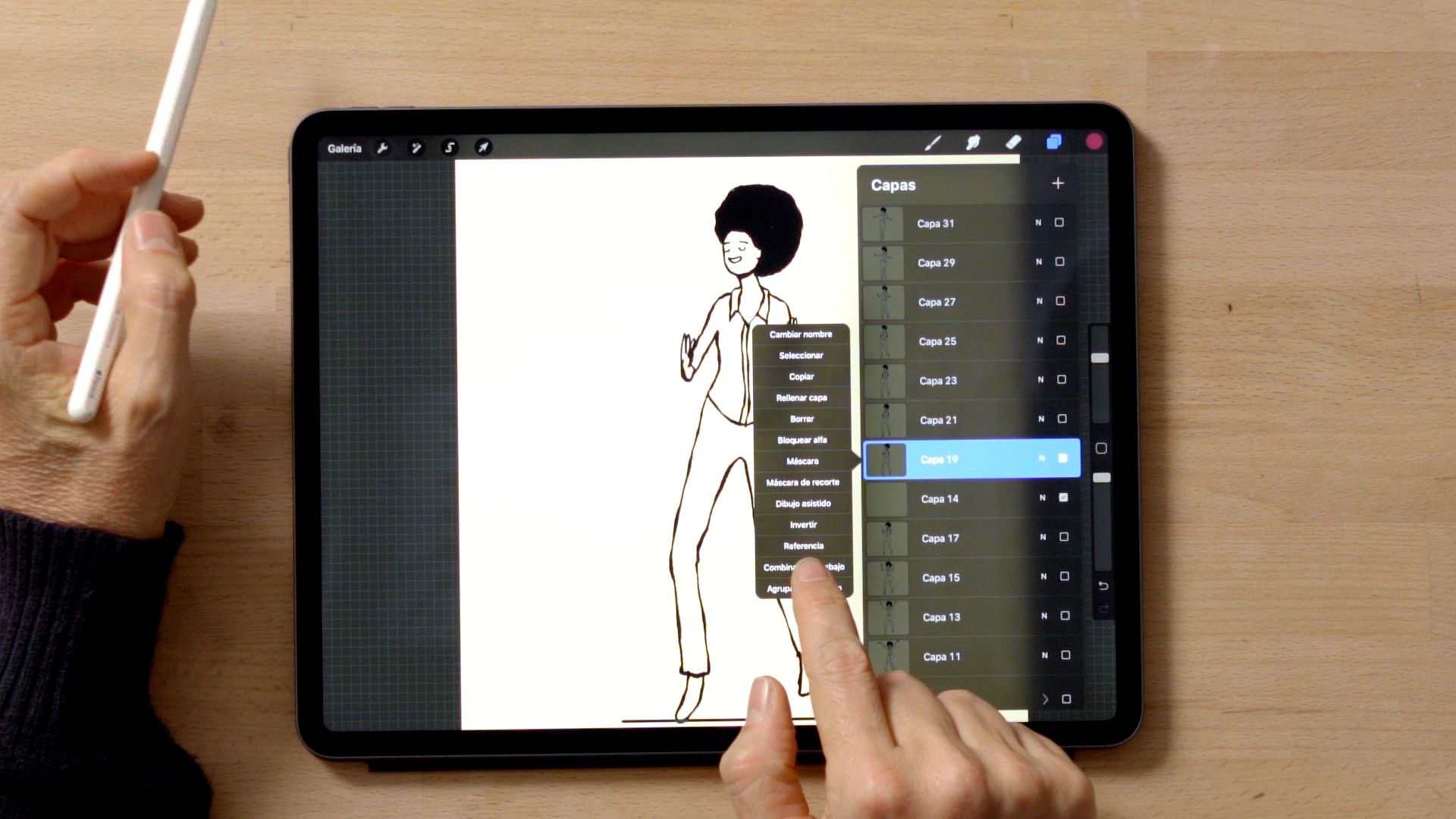
Select a color from the menu in the top right corner and drag it into the selected layer. This will allow you to paint the layer you selected as your Reference without changing anything else in the illustration.
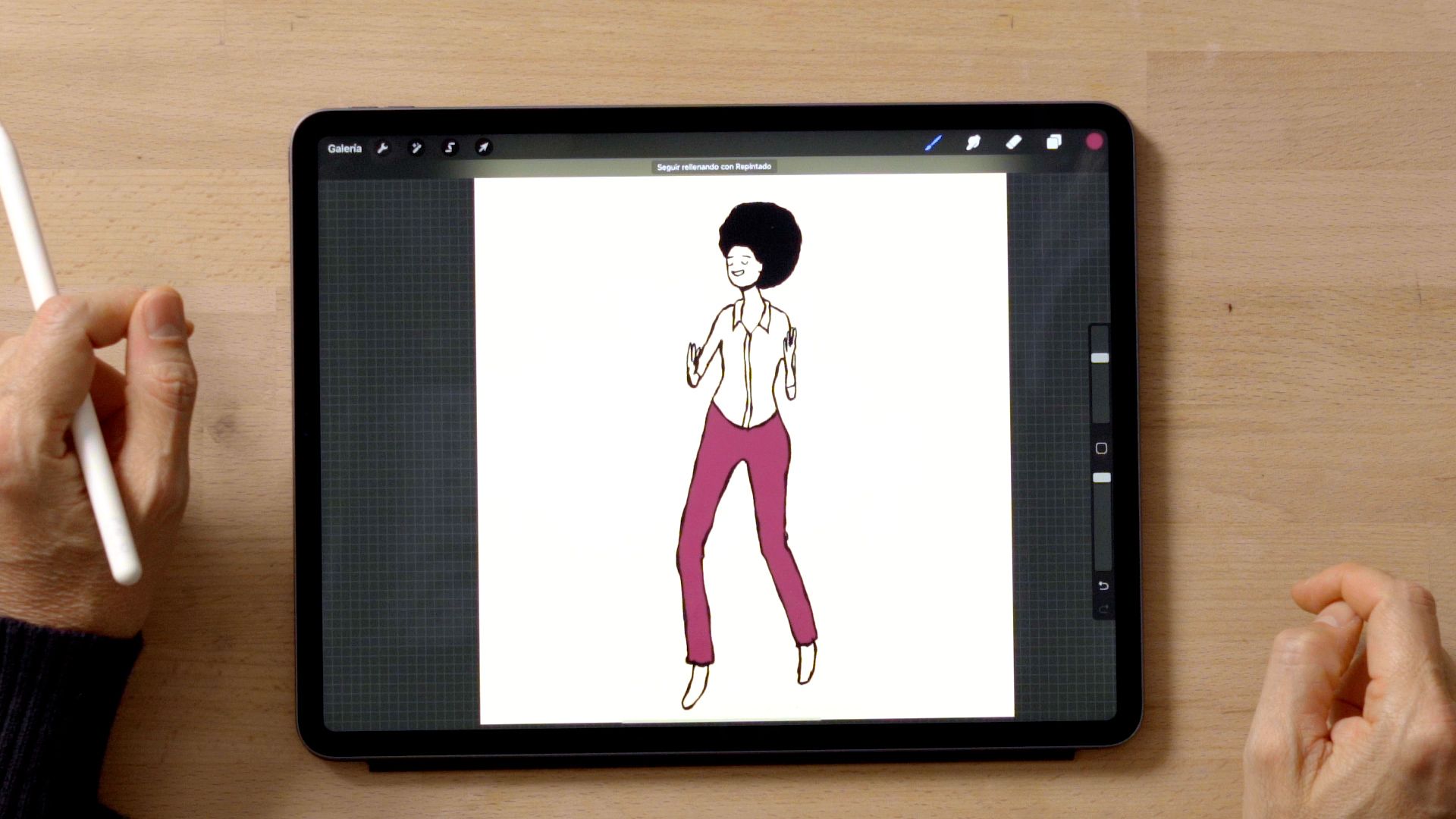
Paint automatically
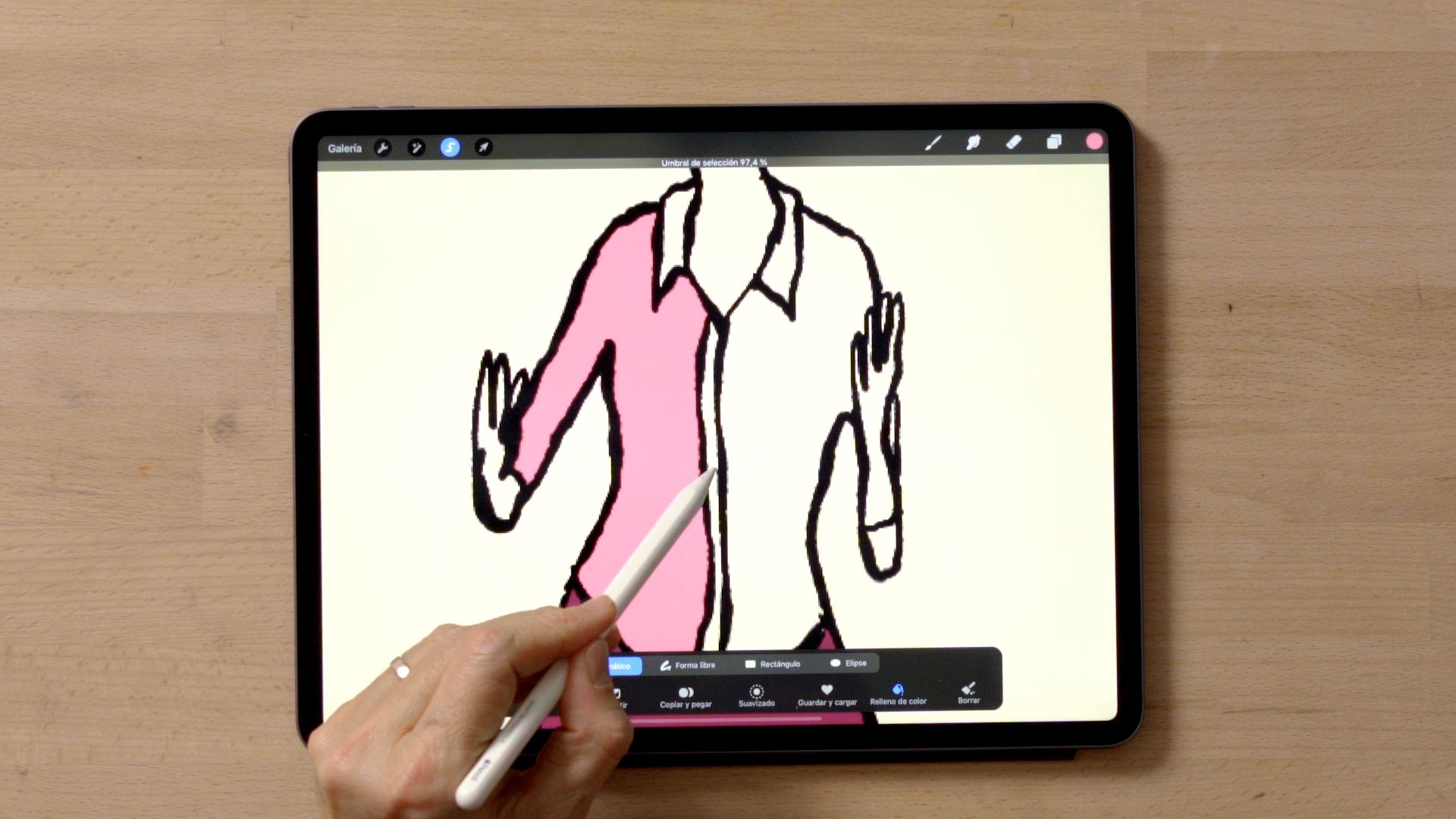
Go to the Select menu in the top left hand corner and select the Automatic tab. Activate the Color fill function. This shortcut is a great way to fill all your layers in the same color using your digital pencil.
Love this tutorial? If you’d like to learn how to use animation as a narrative resource, don’t miss Martin Tognola’s online course: Animated Illustration in Procreate: Tell a Story with Movement.
You may also like:
- Digital Comic Illustration for Social Media, a course by Rocío Diestra Villavicencio
- Illustration with Rhythm and Soul on Procreate, a course by ataulilustracion
- Creative Composition for Illustration with Procreate, a course by Chabaski
- Procreate Tutorial: How to Create a Gif Using Static Images
- 7 Online Courses to Learn How to Illustrate with Photoshop


1 comment
Very informative Martin is a great instructor / muy informativo Martin es un maestro bueno