


Adobe XD Tutorial: Basic Design Functions

Learn with Ethan Parry how to draw shapes, edit colors, and add text using UX design software Adobe XD.
User experience has become an increasingly important part of design—bringing together designers, developers, and other stakeholders to create websites and digital products that users can easily and intuitively navigate. Implementing a successful UX design can result in more sales, improved branding, and better conversion, making it a necessary design principle regardless of the industry or audience being targeted.
That’s why Adobe XD is such an important tool. A leading vector-based UX design software for web and mobile apps, it can be used to design and prototype wireframes and layouts that can then be implemented and tested.
Ethan Parry (@ethanparry) is a service designer and UX research consultant who regularly uses Adobe XD in his own work. In this tutorial, he explains the software’s basic design functions, which are the building blocks you’ll need before you can begin building your own app.

Adobe XD Design Functions
1. To stay organized it’s important to name your artboard before you begin working. To do that, click on the name that appears above the artboard’s upper left corner and type the desired name.
2. Make sure you are in Design mode. To check, look at the upper left corner of your screen. If you see that Prototype or Share mode are selected, simply click on Design to switch modes.
3. Adobe XD’s tools are visible in a vertical column on the left hand side of the screen, and each can be selected either by clicking on the icon or the corresponding keyboard shortcut. They appear in this order: Select (V), Rectangle (R), Ellipse (E), Polygon (Y), Line (L), Pen (P), Text (T), Artboard (A), and Zoom (Z).
4. To create a simple shape on your artboard, select the Rectangle or Ellipse tool. Click and hold on your artboard, and then drag your pointer to control the size and shape. If you’d like to create a perfect circle or square, hold down the Shift key while dragging and the software will automatically lock in the correct proportion.
5. To center a shape, use the Select tool to move it. A line will appear down the center of the artboard and shape when it is correctly positioned.
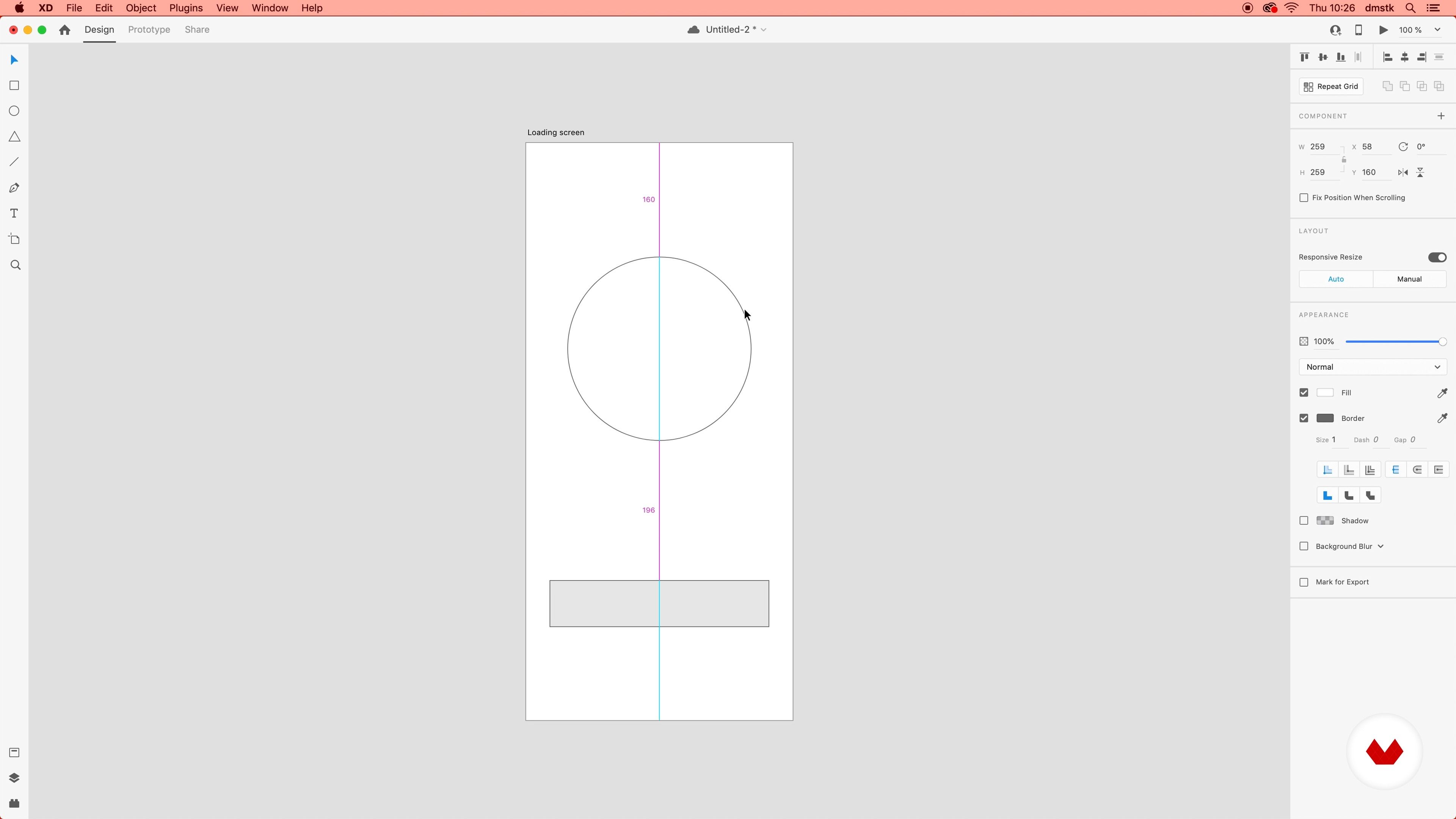
6. On the right hand side of your screen is the property inspector, where you control and can make changes to the elements on the artboard. Examples include color filling shapes, adjusting line width, and rounding the edges of squares and rectangles.
7. If you’d like to color fill a shape, for instance, select the rectangle next to “Fill” in the property inspector and select a color. To save that color for later use in other parts of your project, click the + that appears at the bottom of the popup box to save the color swatch.
8. To create lines, use the Line tool and simply click and drag.

9. Using the Pen tool can give you greater control over the shapes you design and in the creation of icons. Parry doesn’t personally use it, instead favoring a plug-in for all of his icon-related tasks.
10. When adding text, you have two formatting options. Select the Text tool, click anywhere on the artboard, and type to create a single line of text. In the property inspector, to the right of the text alignment icons, you’ll see that the Point Text icon is selected. This is the setting you use if you only need to add a few words to your design.
11. If you want to add more text, to create a paragraph for instance, click on the Area Text icon (it’s beside the Point Text icon). To create the larger text area, click and hold on your artboard, then drag your pointer to define the area. When you enter your text, it will automatically wrap.

If you want to learn more about how to use Adobe XD to design and prototype UX designs, check out Ethan Parry’s online course, Introduction to Adobe XD.
You may also be interested in:
- Adobe Photoshop for Web Design, a course by Arturo Servín
- Introduction to Adobe XD for Cell Phone Apps, a course by Arturo Servín
- UX Fundamental Principles, a course by Strike Heredia


0 comments