


After Effects Tutorial: Types of Layers

Discover the different types of layers in After Effects, and their properties, with Zenzuke
One of the main features when it comes to organizing your work in Adobe After Effects - a leading software in visual effects and motion graphics - is the various types of layers that are available. By using them, you can easily edit different parts of a project (such as text, images, or graphics) without interfering with any other elements.
In this tutorial, Carlos "Zenzuke" Albarrán (@zenzuke), a founding partner of Maaambo design studio who has more than a decade of experience in motion graphics and 2D and 3D animation, reviews the various types of layers in After Effects and their different functions. This is a great opportunity to learn the basics of After Effects before you dive into a project. Find out more in the video below:

1. Creating a new layer
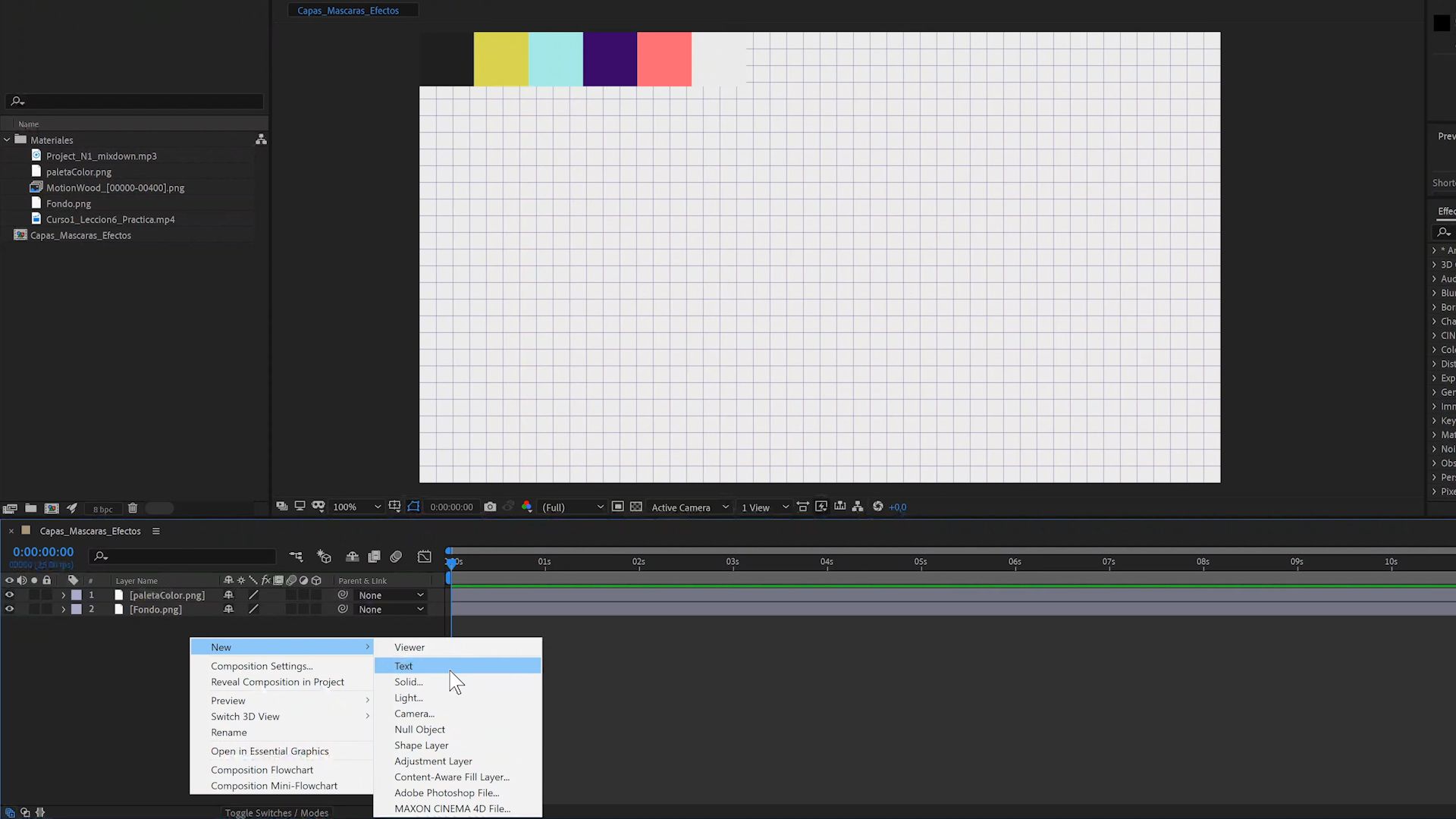
Layers can be created by going to the menu and selecting Layer>New. From there, you can choose from the different types of layers available, which include: Text, Solid, Light, Camera, Null Object, and Adjustment, along with several others. If you are unable to select "New" that means that a composition has not been preselected, which is essential before you begin working with layers.
Each type of layer has a corresponding keyboard shortcut. Based on the number of times you’ll need to use them during a project, Zenzuke recommends you only memorize the shortcuts for the Solid Layer (Ctrl + Y) and Adjustment Layer (Ctrl + Alt + Y). "The other shortcuts are very elaborate given how easy it is to just create a layer in After Effects directly with your mouse," he says.
Another way to create a layer is to right-click on any part of the timeline.
2. For starters, the Text and Solid Layers
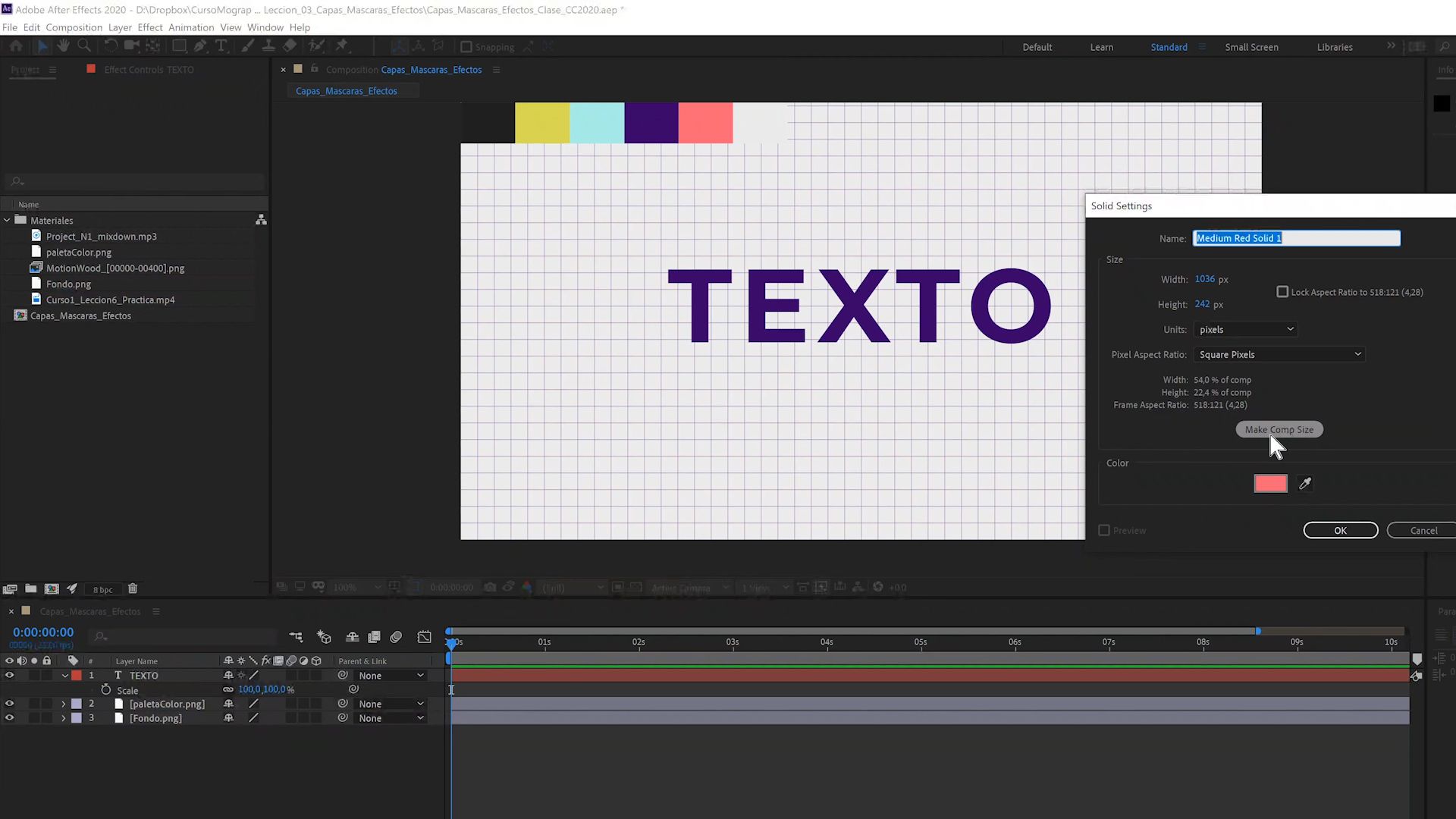
Text Layers are the simplest to work with. All you have to do is click on the T tool and then on any point in your composition and an empty Text Layer will automatically appear on the timeline.
Solid Layers at the next most popular layer, and they have specific pixel dimensions and come in a solid color. These can be used as a base to which you can apply different effects, and you'll give them a name and size when you make them. These layer parameters can be changed at a later stage in the project if needed.
3. What a Null Object Layer does
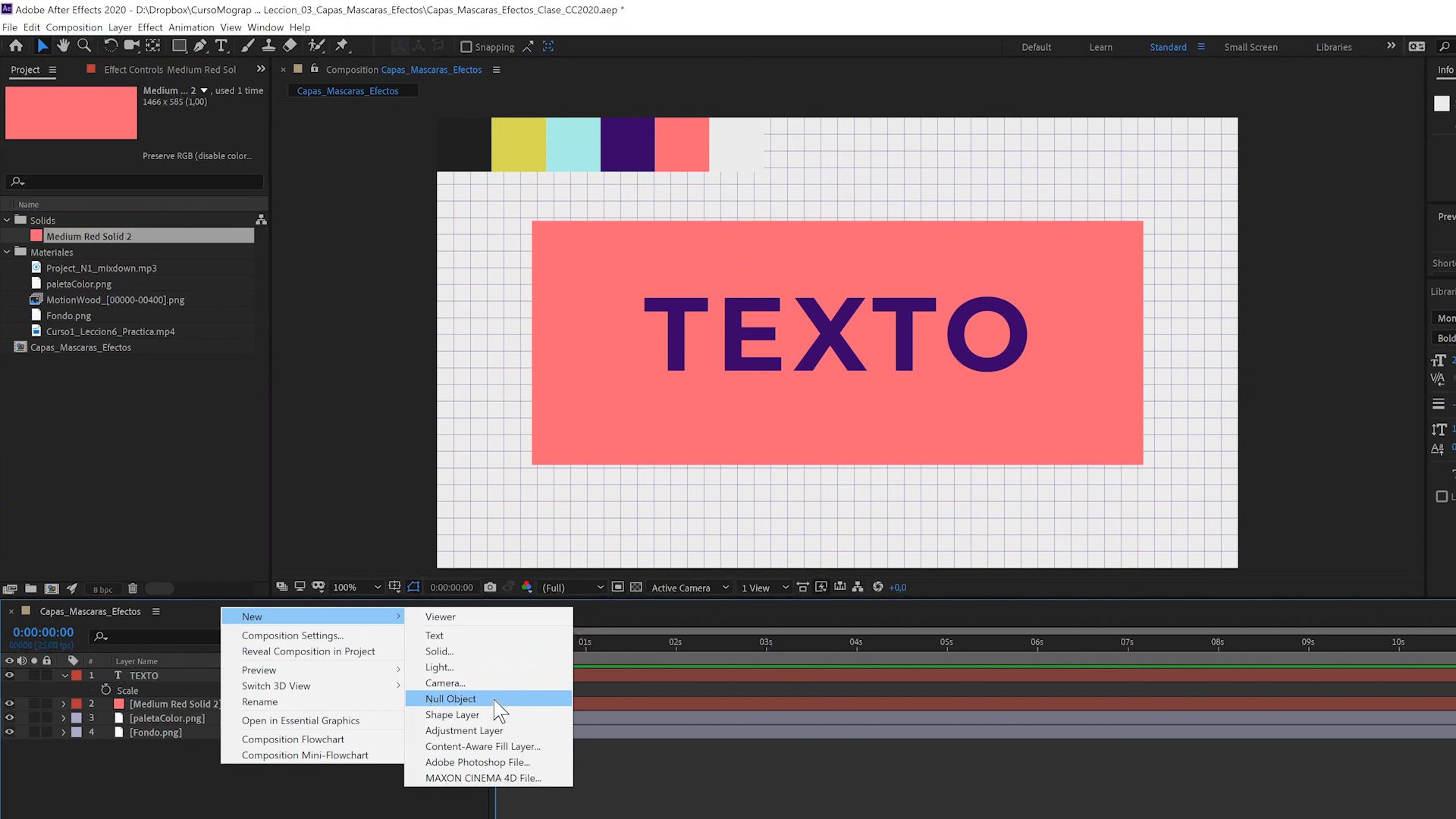
They are invisible layers and, therefore, they do not visually appear in the final result of your project. Instead, they control the transform properties of the other visible layers that are attached to it, meaning it can impact their position, rotation, and scale.
4. Shape Layers
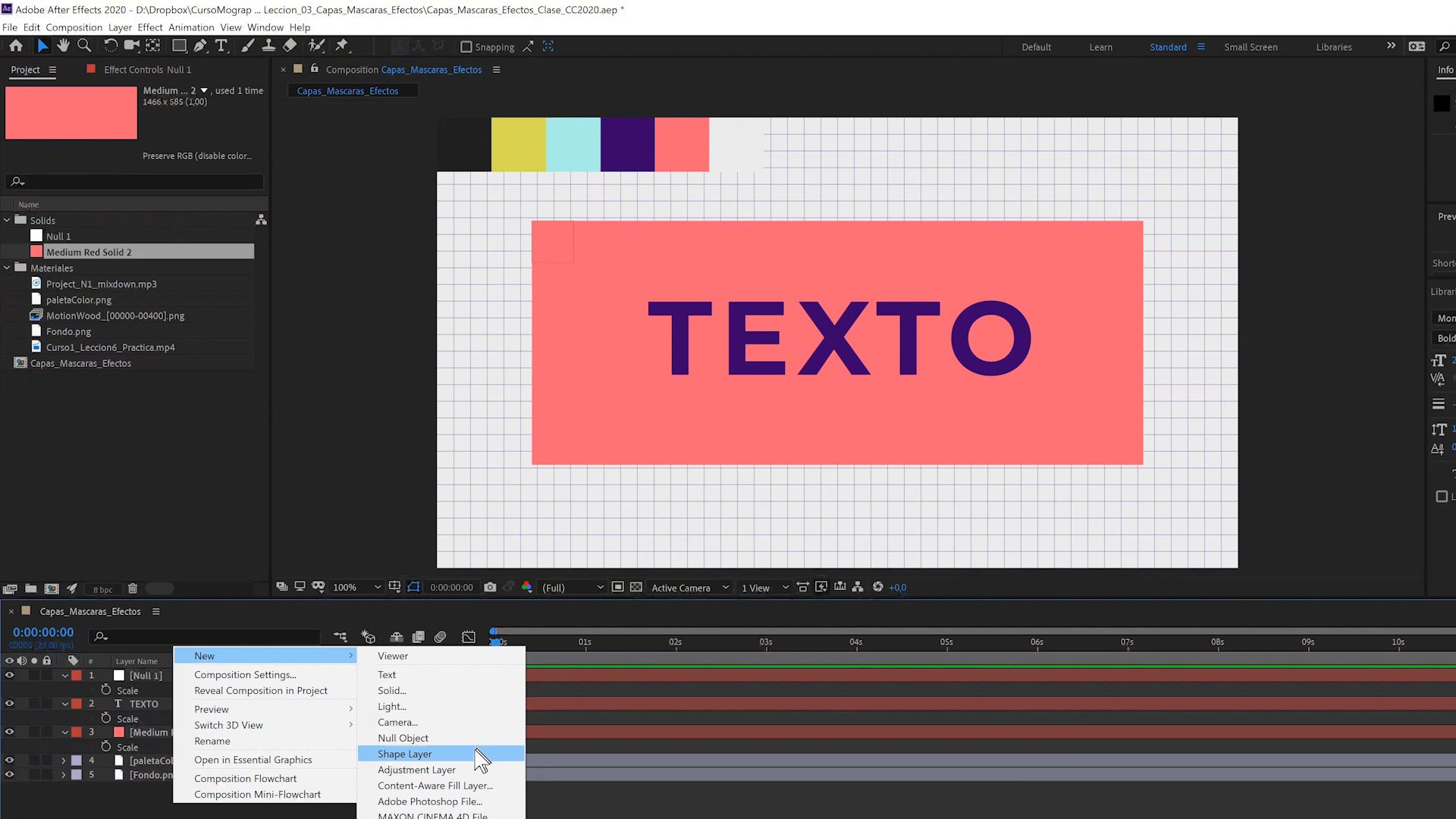
These are created by clicking on the Polygon Tool or the Pen (in the case of Vector Shape Layers). If the intention is to use it as a mask that will be superimposed on other layers, you can create it by preselecting the Solid Layer in your timeline.
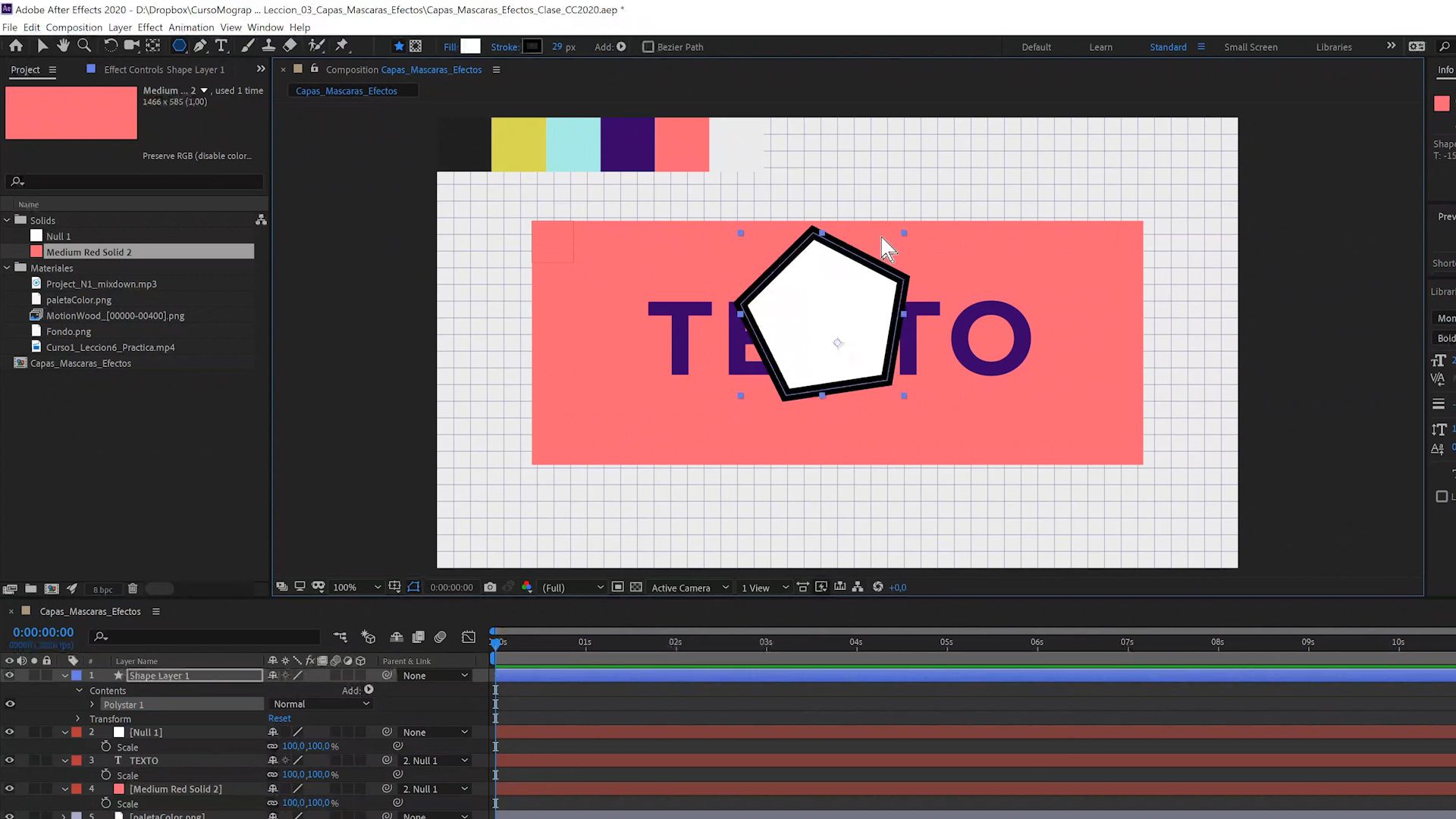
To add the shape as a separate layer, make sure that you do not have another layer selected when you create it (like in the image above).
5. The Adjustment Layer
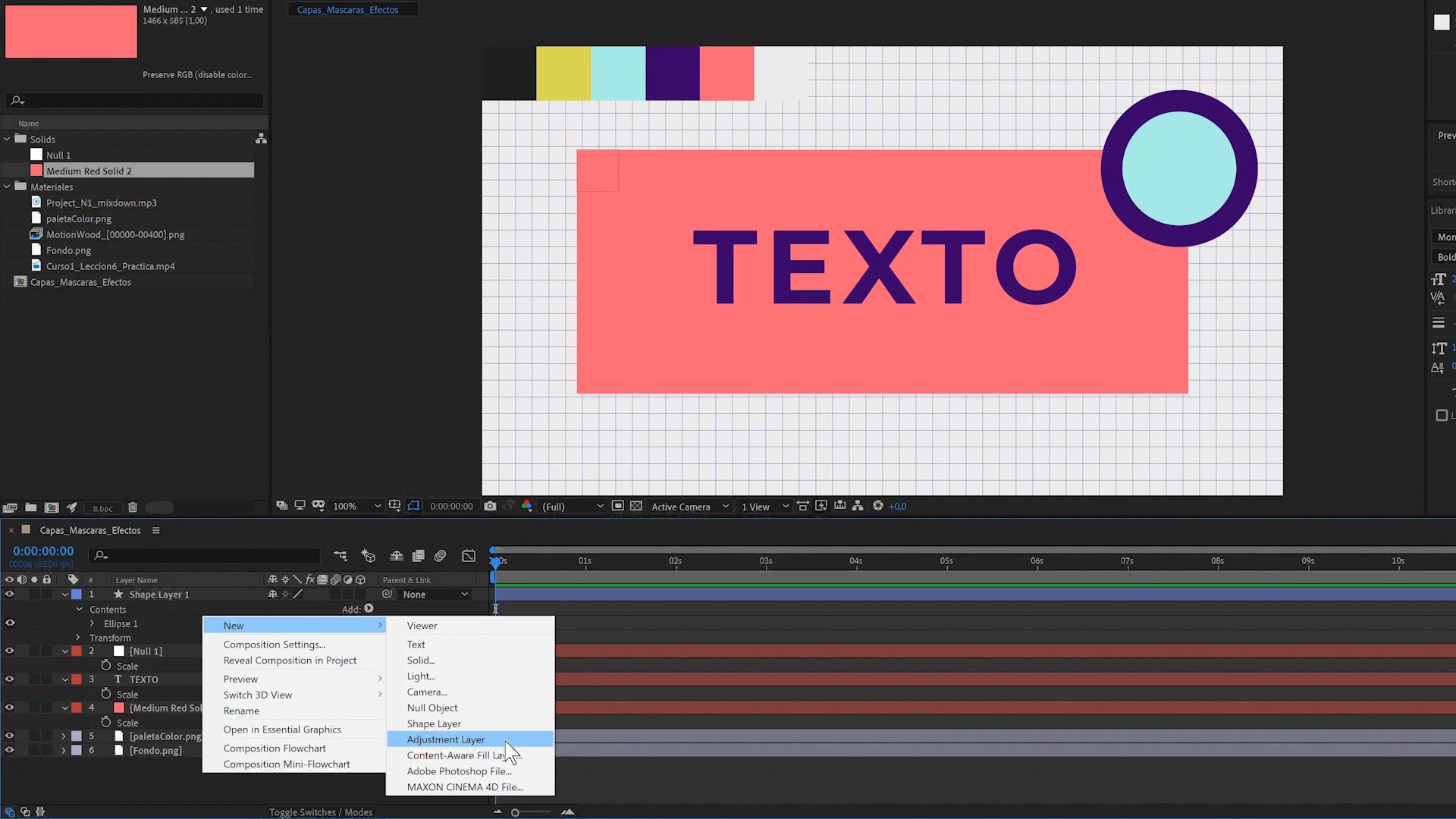
These work similar to a Solid Layer but also modify and apply effects to all the layers that are below them. “Photoshop also has them, but they aren't as powerful as the ones in After Effects. In addition to color and saturation, we can go wild by adding things, creating blurs, and basically doing whatever we want,” says Zenzuke.
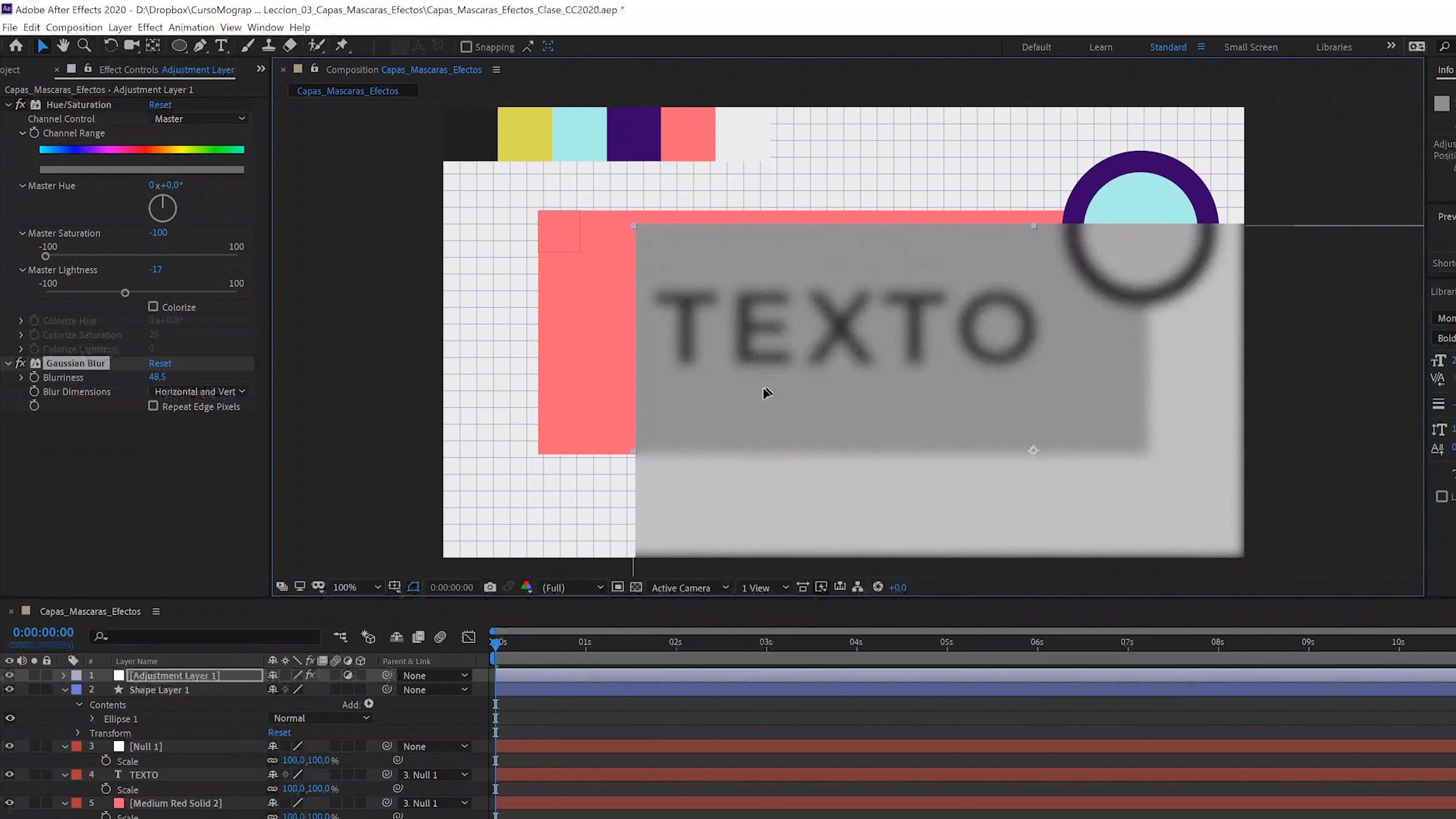
By increasing or decreasing saturation, or increasing or decreasing opacity in an Adjustment Layer, for example, you can create an effect that looks like a film or filter (like in the example above). These can also be moved to control what areas the effect appears in.
Did you like this tutorial? If you'd like to learn the basics of how to use this versatile software, remember to check out Zenzuke's online course, 'Introduction to After Effects'.
You may also be interested in:
- Build a friend: from Pencil to Movement, a course by Zenzuke
- Express animation for social media with After Effects, a course by Yimbro Escárrega
- Animation Techniques with 3D Effects in After Effects, a course by Moncho Massé
- Retro Movement in After Effects, a course by Joseba Elorza


+0 Kommentare