


How to Create an Illustration with Parallax Effect
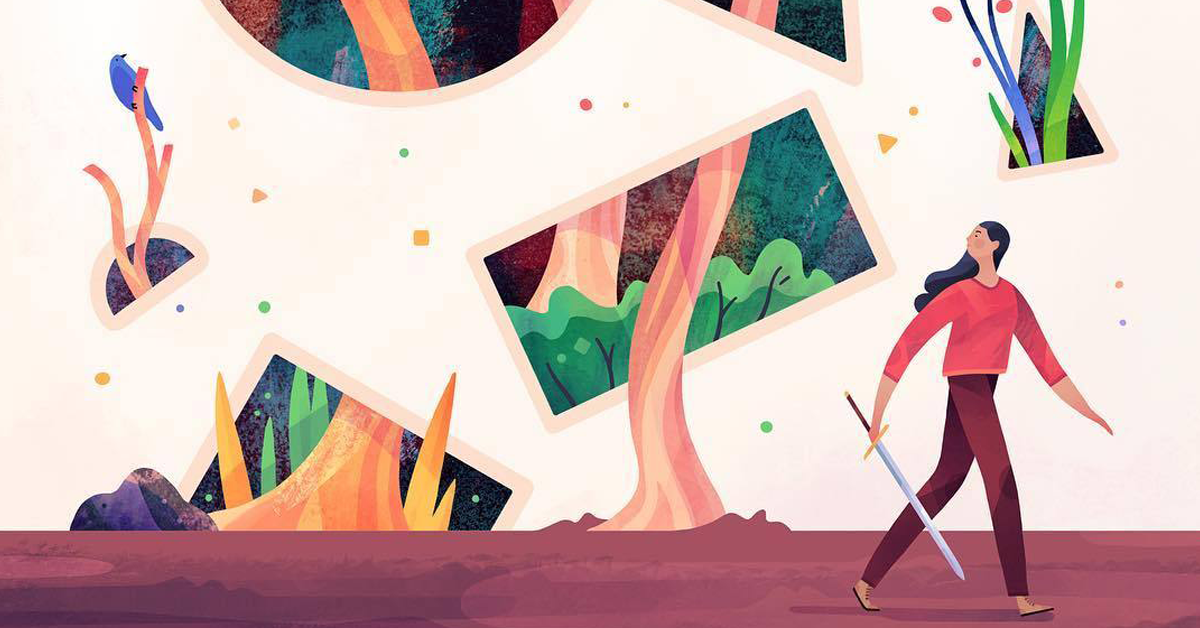
Add depth and dynamism to an illustration with this step-by-step technique
You may already be familiar with this effect or have seen it on a website: as you enter a page and scroll down, the background seems to move independently, creating depth. This is called Parallax, a trend that started in web design and has now extended to illustration and augmented reality.
This resource adds movement to any 2D piece, simulating the shifting of the background elements, to give a different perspective. This visual effect offsets the foreground and immerses the viewer into a more in-depth and attractive experience.
We talked to illustrator Jarom Vogel, a precursor in using this resource for drawing, to learn about this effect in detail.

Jarom Vogel worked as a designer and web developer and became a freelance illustrator a couple of years ago. Vogel’s aesthetic, developed during art school, is defined by a flat, colorful, and textured style, a taste for acrylic paint, and marked outlines and shapes.
Each piece conveys a sense of nature and adventure, of child-oriented themes, that Vogel wanted to enhance with new attractive elements. This search brought him to the Parallax effect, and led him to collaborate with Apple, Disney, Procreate, and Adobe.
Jarom Vogel shares the creative process behind one of his latest pieces, which incorporated Parallax.
How do you create an illustration with Parallax effect?
1. The sketch
I always start with a sketch. For this piece, I made a small, animated one, but I usually only use a pencil. I wanted it to look like a circle of light in a forest, with darkness around it.

2. The importance of details
I spent a long time making corrections to the drawing: I was not happy with the colors of the original, so I redid it: I fixed the shadows, I added more light and textures, and I used cooler tones. I also enlarged the canvas slightly, from a 512px to a 2048px square.

3. Improving the animation
Once I was happy with the look of the image, I improved the animation. I did this step in Procreate. I am quite slow, so I work on five different layers, but only three moving frames. Very simple.

4. Make it interactive
Once the animation is complete, I decide how to group the layers to become interactive. I export all the layers, and I name them, so they make sense for coding (all the blue circles are the shadows: I exported them in a blending mode in the finished piece).
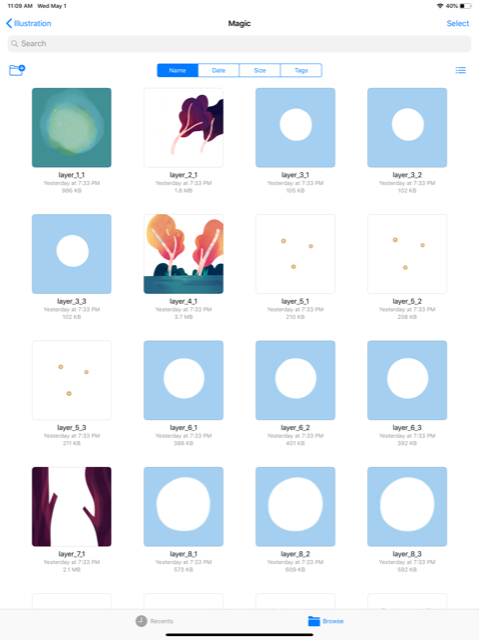
5. The code
I upload all the files into a particular folder on my website, and I translate them to HTML. For this piece, I decided to use 3D transformations in CSS. In other projects, I have used a simpler Parallax effect, where each layer balances out independently when it moves, giving a basic sense of depth.
At this point, I choose whether to integrate augmented reality into the piece. Since this does not work as well from the web, I need to change it to Xcode.
In any case, the configuration from this point is the same: you just need to decide how to manipulate the elements. It is essential to have a large white layer mask in the background: if not, all the borders of the layers would be visible, and the effect will be spoiled.
6. The interactive element
Finally, you must add the use of a gyroscope and an accelerometer to the device. You need several tests and quite a bit of time to finalize numbers to ensure everything appears natural. To sum up, this piece was drawn and animated in Procreate with HTML code, CSS, and Javascript.
Filming a video with one hand, while you move the device with the other is, in my view, one of the hardest parts.
You may be interested in:
- Digital Illustration with Procreate, a course by Óscar Lloréns.
- SVG Vectorial Graphics: Illustrate and Animate with Code, a course by Javier Usobiaga Ferrer.
- Advanced Techniques for Vectorial Illustration, a course by Rafahu.


0 comments