

Axure Tutorial: How to Create an Interactive Form
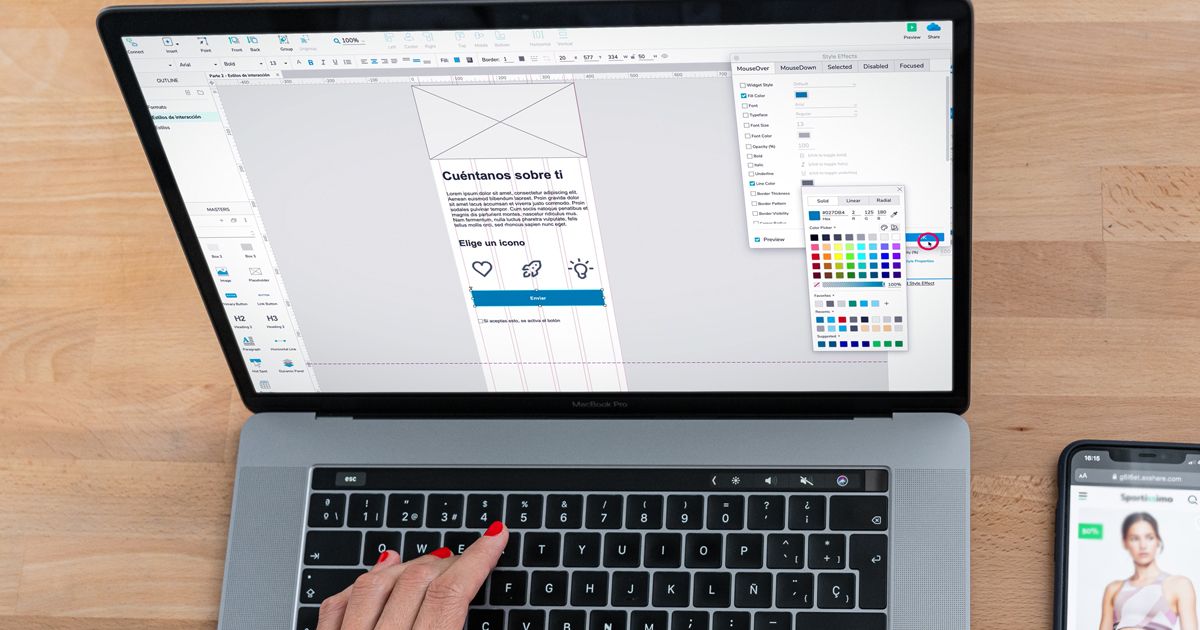
Learn how to create a form containing all the elements you need in Axure RP, from scratch, with Diga33!
Creating a good way to interact with your clients, understand their needs, learn their tastes and provide them with the products and services they are looking for is a fundamental e-commerce website and app development task.
Which is why you need to include forms. In this tutorial, Luz de León, General Manager of strategic design and creative tech company Diga33! teaches you the easy way to design forms in Axure.
Discover how in the video.

5 Steps to Include Forms in Your Apps with Axure
1. Position the elements in your form and start inputting text
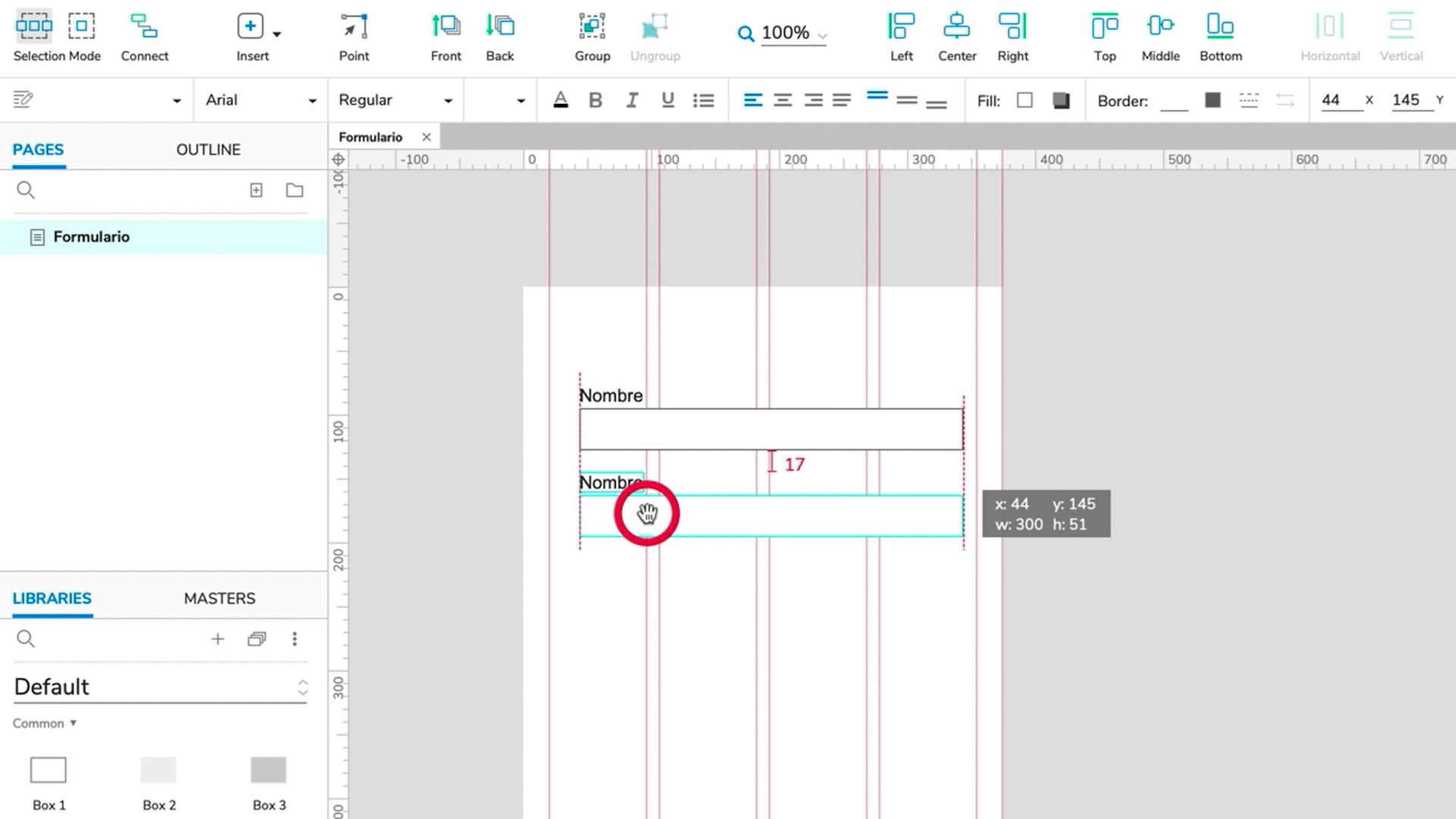
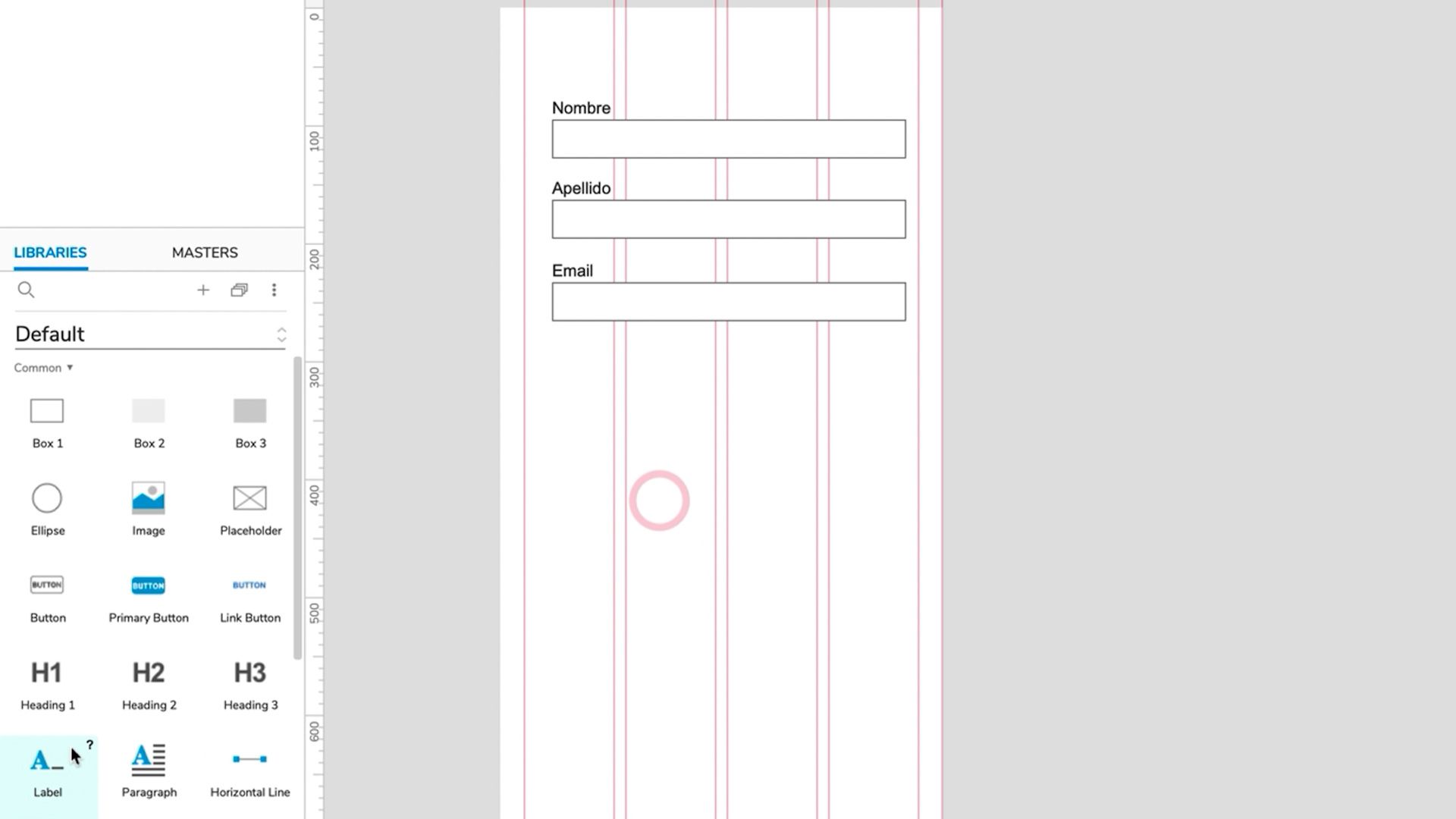
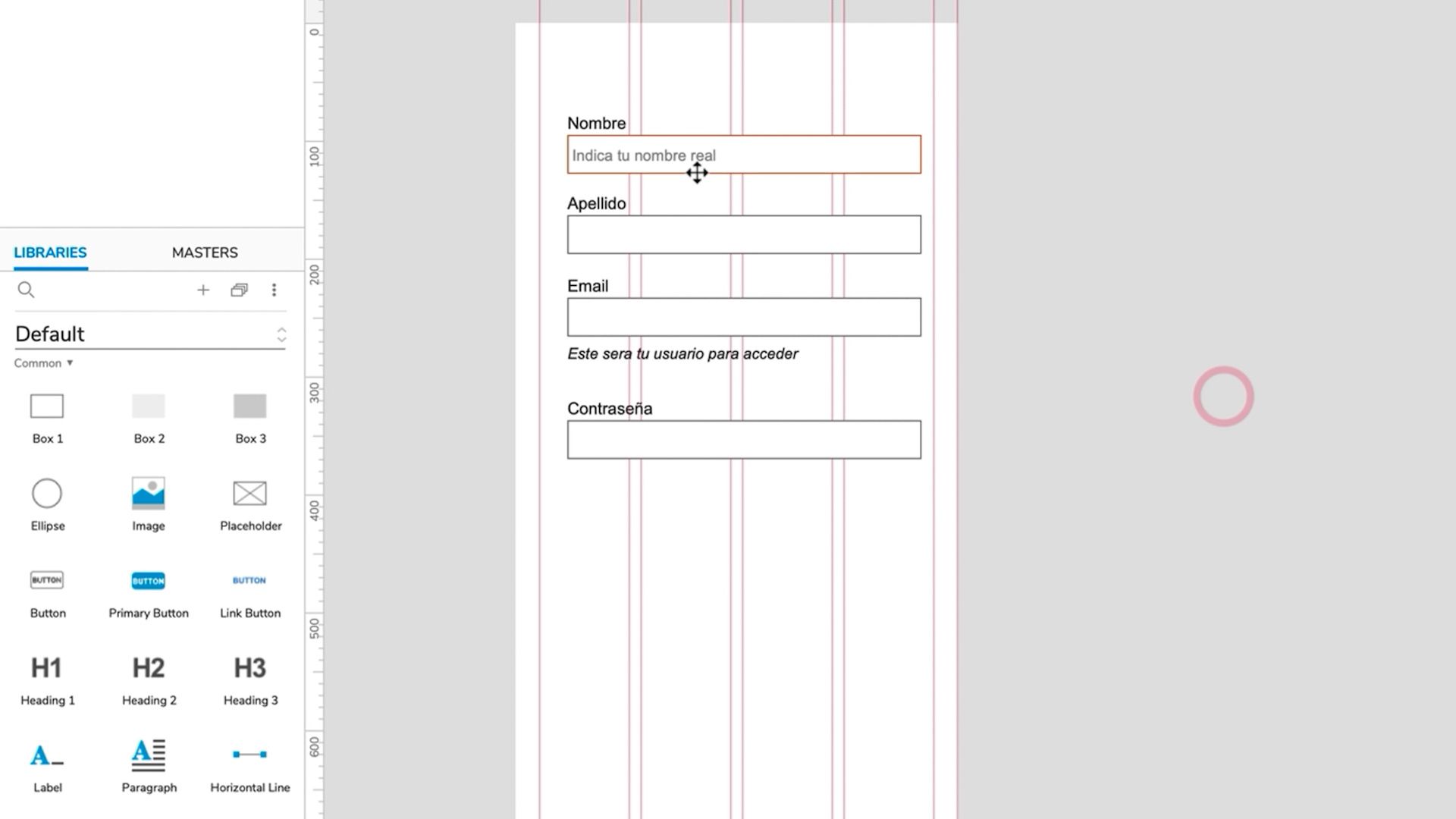
The elements you need to create your form (basic text, password, lists, etc.) are found in the Forms section. Start by inserting text (a basic input) into your blank screen. Then write a description for this field: Name, Surname or any other data you will ask users to provide.
2. Explore other types of field
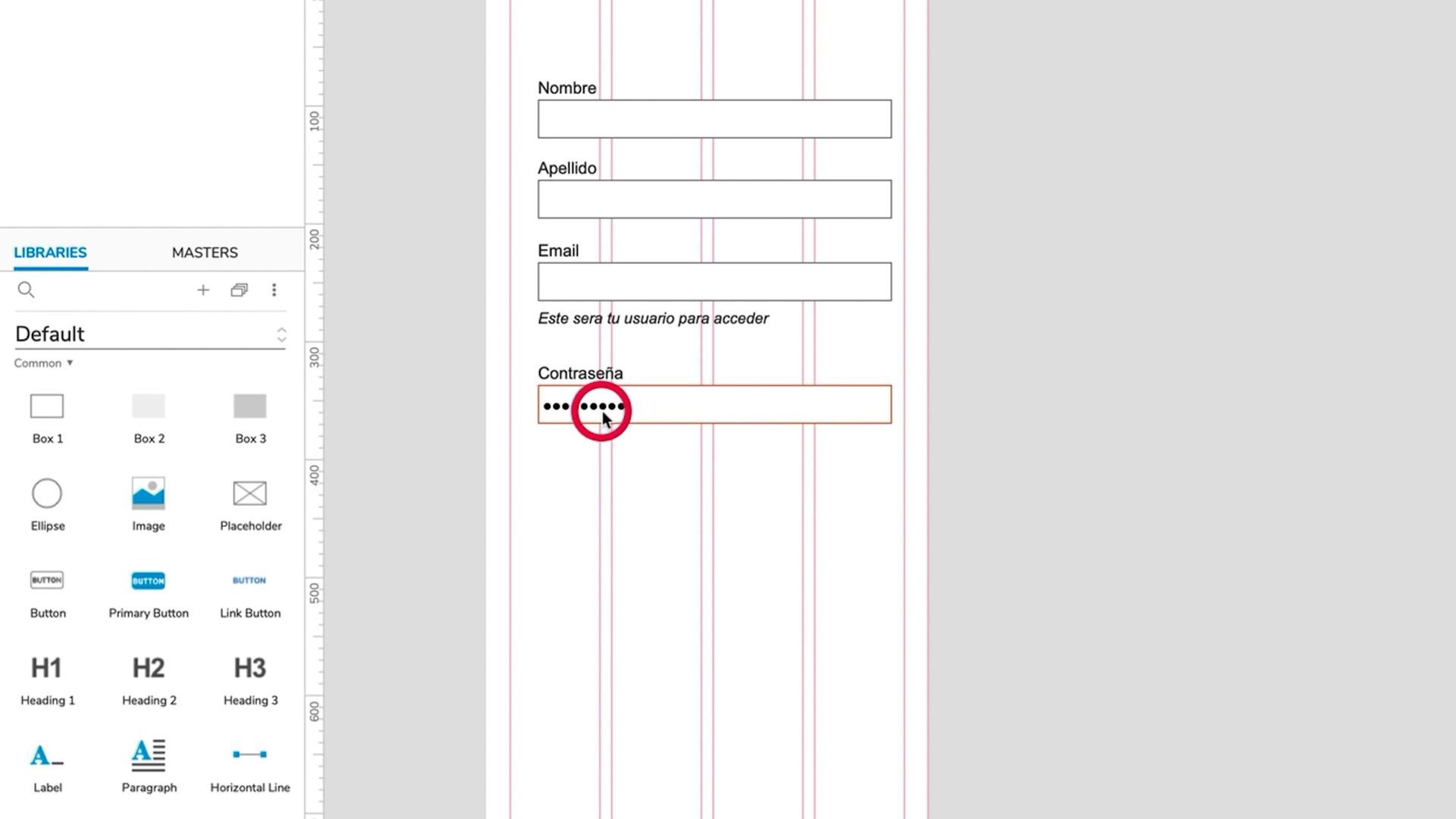
For example, if you need a ‘help’ text field with smaller lettering in a different style, use the Label tool. Passwords are not visible onscreen all the time so they have their own Password element. Insert each of these elements into your blank screen and add a description for each field.
3. Discover the Hint command
It’s very useful for when you want the text inside a field in your form to disappear when your user clicks on it. Use the Hint element in the Forms library to achieve this.
4. Add drop-down elements
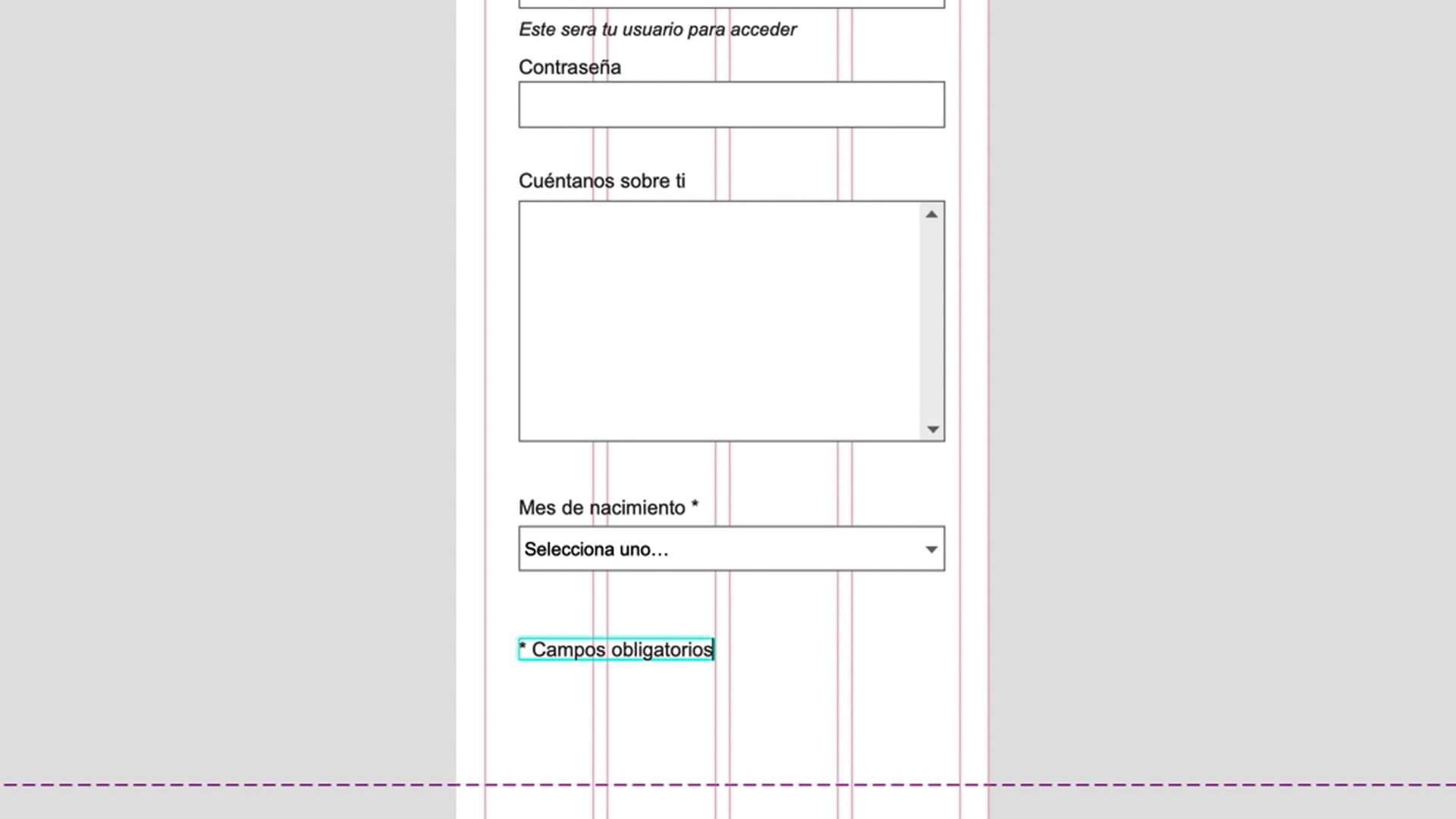
For example, dates of birth generally allow you to select from a drop-down menu of months and days. Use the Droplist tool to create something along these lines.
5. Use the Checkbox command
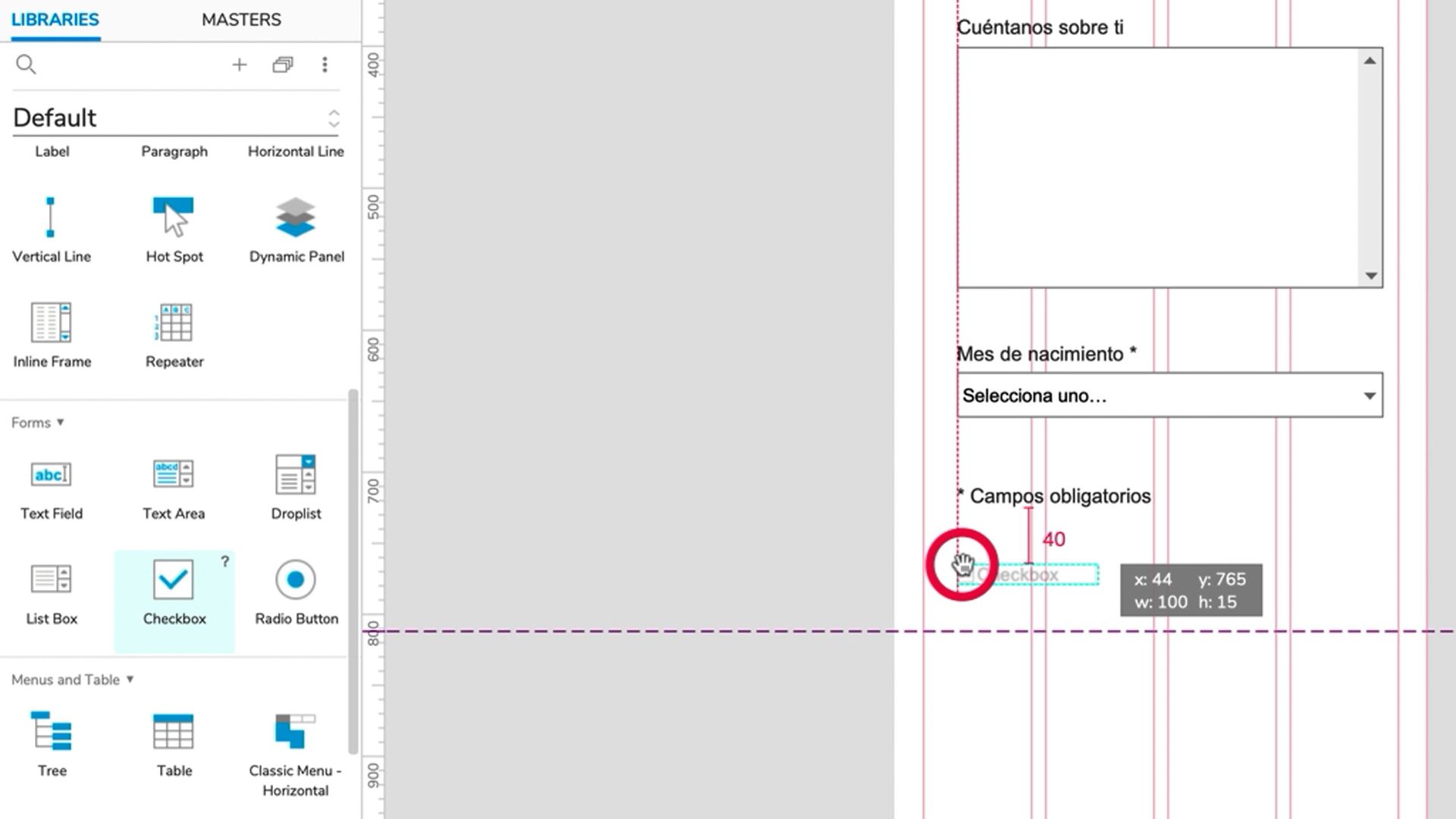
Finally, use the Checkbox tool to define the elements a user can select, for example their gender or marital status, and add it to your form.
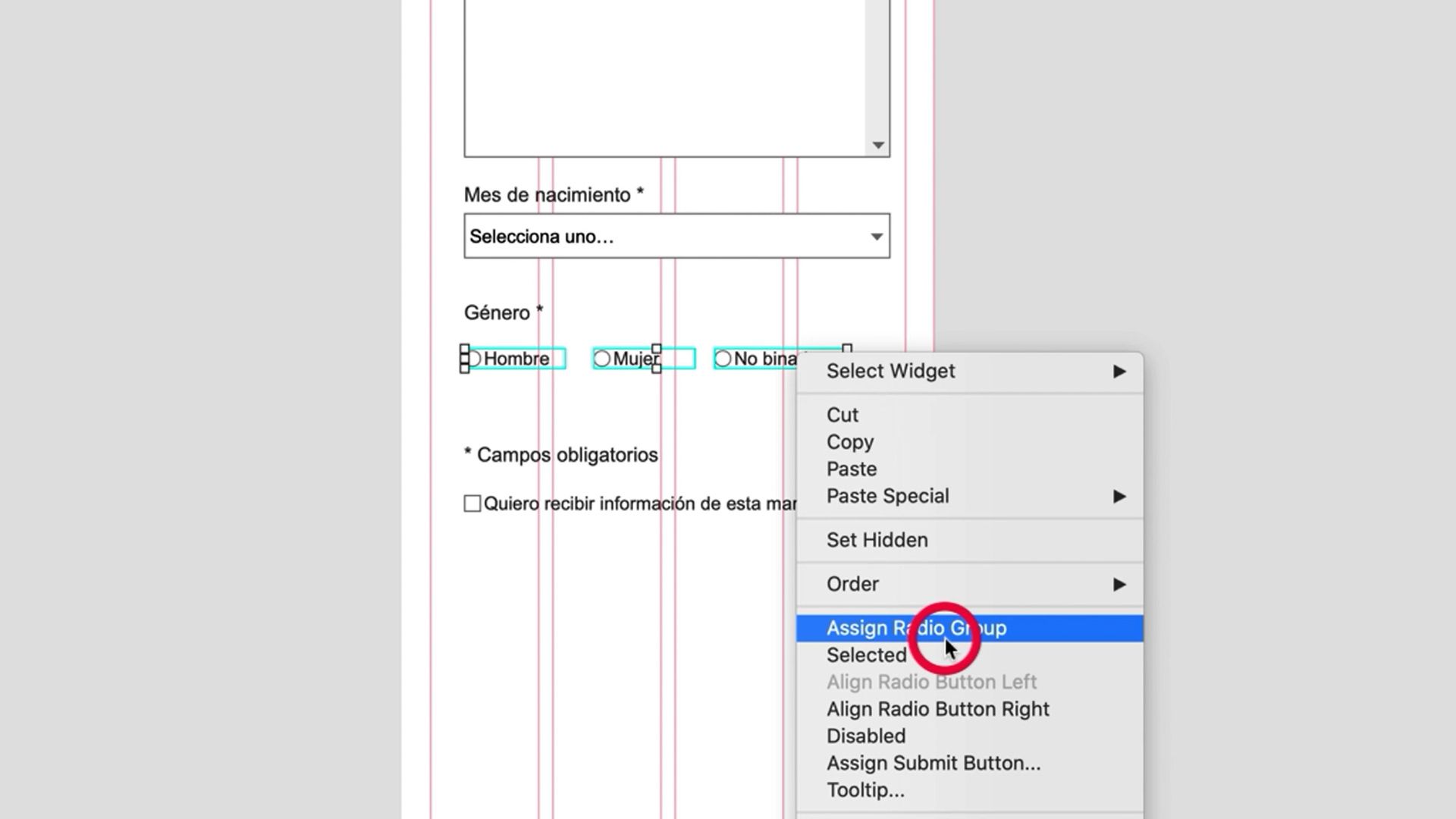
Remember to group the elements together by right clicking and selecting Assign Radio Group, if you want to create a checkbox field with only one possible answer.
Love these tips? Learn how to design user experiences and showcase them using advanced prototypes in Axure in Luz’s online course: Prototype and UX Design for E-Commerce Apps.
You may also like:
- Believe It or Not, UX Design Is a 6000-Year-Old Skill
- UX Tutorial: How to Conduct Qualitative User Research
- App Design: Prototyping for Beginners, a course by Filippos Protogeridis
- UI Kit Creation with Sketch, a course by Nodos
- Digital Product Design with Lean and UX, a course by Óscar Santos Pérez


0 opmerkingen